Most loyalty programs are designed to be noticed. A brightly colored widget floats in the corner. A pop-up appears asking customers to sign up. A banner across the top of the homepage announces the program exists. These touchpoints have their place, but they share a fundamental limitation: they're interruptions. They ask customers to break out of what they're doing and pay attention to something else.
The most effective loyalty programs do something different. They are woven into the natural flow of browsing and buying so naturally that customers absorb the value without interrupting their journey. The loyalty program is not a separate thing; it is the shopping experience.
Moving Beyond the Widget
The floating loyalty widget is a classic for a reason - it's convenient and universally recognized. However, as e-commerce matures, "widget blindness" has become a real hurdle. Much like banner blindness in the early 2000s, shoppers have learned to tune out persistent UI elements in the corners of their screens.
The result? A loyal customer can shop your store for months and still have only a vague sense of their points balance or how close they are to their next reward. To fix this, you need to surface loyalty information in the moments that matter.
The Product Page: Turning Points into Value
Consider the mindset of a customer on a product page. They are actively weighing price, quality, and need. This is the exact moment where the information: "You'll earn 50 points on this item" becomes a powerful persuasive tool.
With Keystone's App Blocks, you can embed a dynamic "Points Earned" display directly into your product template. Because it's a native UI extension rather than an overlay, it's read as product information, not an advertisement. It reframes the price tag: the customer isn't just spending money; they are earning future value.
The Customer Account: The Hub of Trust
Your Customer Account Page shouldn't be an afterthought - it's the home base for your most dedicated fans. This is where the relationship is codified and where customers go to feel in control of their rewards.
Instead of forcing users to click through a small widget to see their history, Keystone allows you to natively embed the full loyalty experience into the Shopify Account page. Here, customers can:
- View a transparent, line-item history of every point earned and spent.
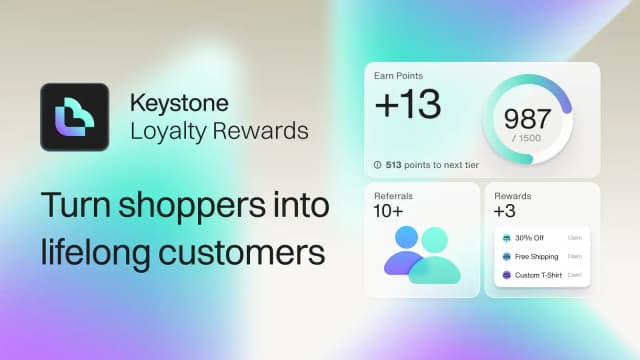
- Track their progress toward the next VIP Tier with a clear visual breakdown.
- Manage their Referral links and see exactly who has successfully joined through their invite.
The Checkout: The Ultimate Conversion Nudge
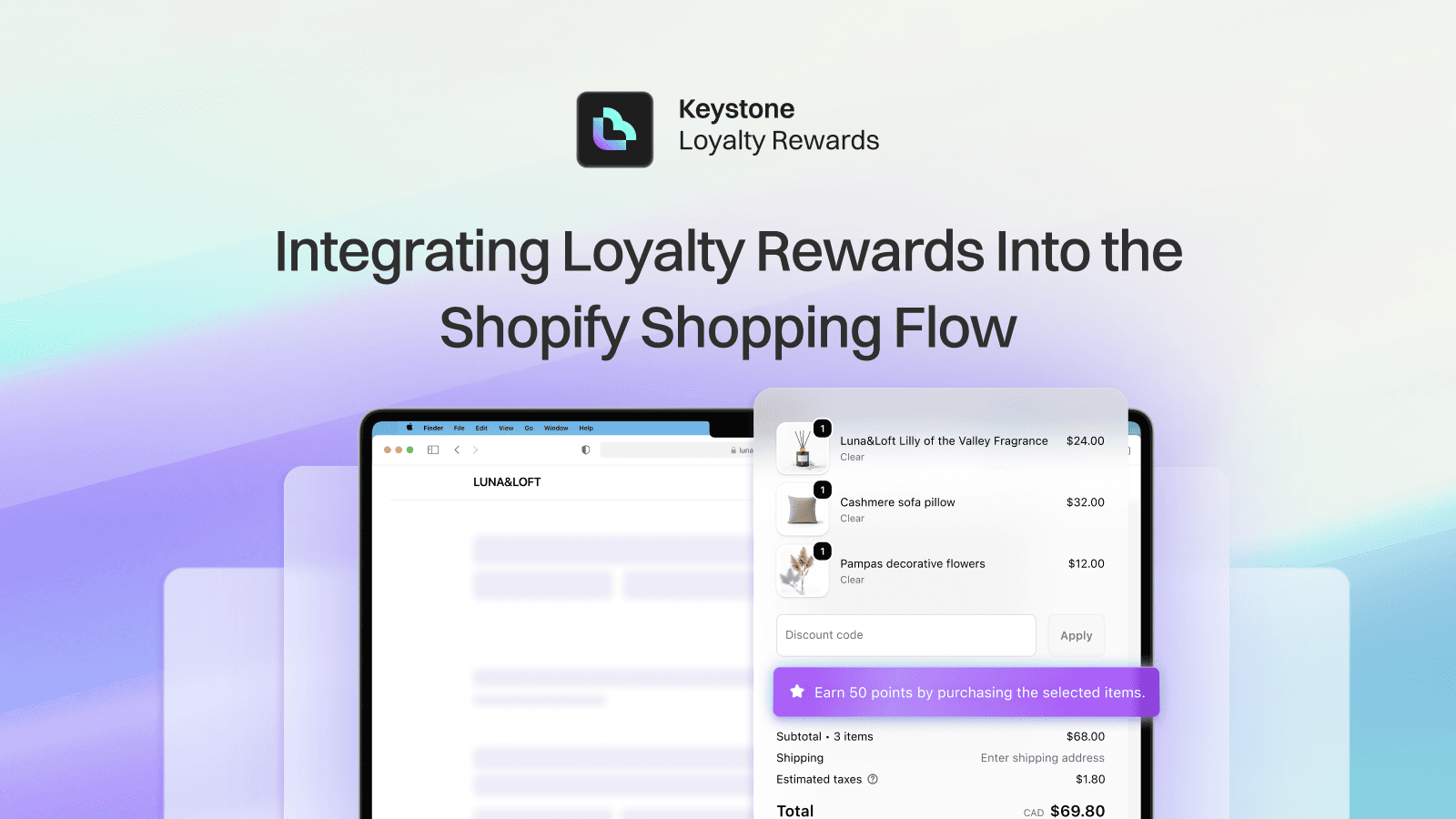
For Shopify Plus merchants, the checkout is the most valuable real estate in your store. It is also where friction is most dangerous. Keystone's Checkout Extensions allow you to surface relevant loyalty data at the finish line without the customer ever having to exit the flow to interact with a widget.
- Redeem at Checkout: Let customers apply points for a discount via a simple dropdown directly in the checkout side panel.
- The Progress Nudge: Show a customer they are only $10 away from the next VIP tier. This often triggers a "small uplift" in order value as customers add a final item to their cart to unlock that status.
Embedding Across the Journey
Beyond product pages and checkout, Keystone App Blocks can be placed on any page of your store. This includes collection pages, the cart drawer, and customer account pages. Each placement is designed to keep loyalty visible and meaningful throughout the full shopping journey. Your program should be present at every step rather than appearing only at enrollment or at redemption.
If you want to see how this fits into a long-term strategy, read our guide on How to Build a Loyalty Program That Truly Scales to see how native UX drives higher lifetime value.
Ready to make loyalty visible everywhere it matters?
Set up App Blocks in your Keystone dashboard and place the points display on your product pages, cart drawer, and checkout. It takes minutes to configure and can meaningfully increase the percentage of customers who actively engage with your program.
Related reading
- How to Build a Loyalty Program That Truly Scales
- Why Are Custom Rewards Better Than Discounts for Building Brand Loyalty?
- Meet Sidekick: Ask Your Shopify Loyalty Program Anything, in Plain Language
Ready to put this into practice? Keystone Loyalty & Rewards launches points, VIP tiers and referrals in minutes — VIP tiers at a third of what the big-name apps charge, a done-for-you setup option, and a free plan to start.