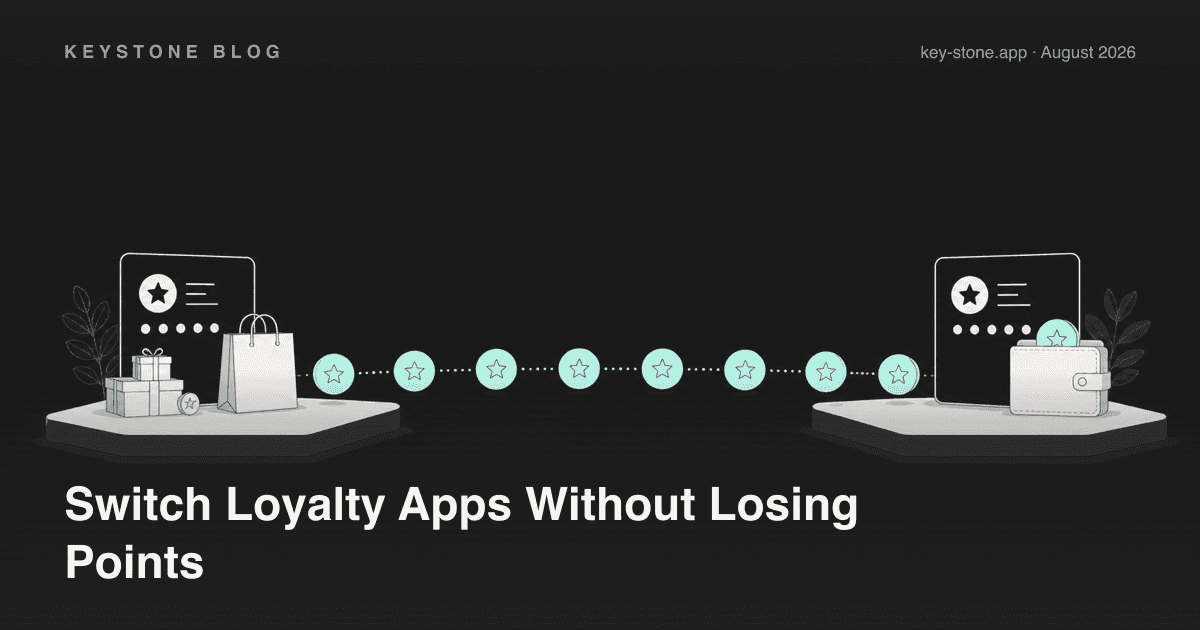
Switching loyalty apps feels risky because the thing you are moving is not a setting - it is a promise. Every point on a customer's balance is a small debt your store owes them, and if a migration zeroes those balances, customers notice immediately and loudly.
The good news: done in the right order, a loyalty migration is a spreadsheet job, not a leap of faith. Here is the short version:
- Export every customer's point balance (and tier, if you have tiers) as a CSV from your current app.
- Map the fields - email, points, tier - to the new app's import format.
- Import before you uninstall. Both apps can be installed at once; only one should be visible.
- Run a short parallel window to verify balances on real accounts.
- Communicate once, after the switch, not before and not repeatedly.
Now the full playbook, including the parts that usually go wrong.
Step 1: Audit What You Are Actually Migrating
Before exporting anything, write down what your current program contains. Most stores are migrating more than they think:
- Point balances per customer
- VIP tier assignments (and the spend history that earned them)
- Pending referrals - links that have been shared but not yet converted
- Issued-but-unredeemed rewards (discount codes already generated)
- Program rules: earning rates, expiry policy, exclusions
Balances and tiers migrate as data. Rules migrate as configuration you re-create by hand in the new app. Pending referrals and issued rewards usually cannot migrate at all - you handle those with policy, which we cover below.
Step 2: Export Points, Tiers, and Customers as CSV
Every serious loyalty app has a CSV export of customer balances - if yours does not, contact their support and ask for one before you cancel, while you are still a paying customer. At minimum you need three columns: customer email, point balance, and tier name if applicable.
Export on a quiet day and note the timestamp. Any points earned after the export will need a second, smaller delta export right before cutover - or you accept a small gap and top up manually for the handful of affected customers.
Step 3: Clean the Data Before Import
Ten minutes in a spreadsheet prevents most migration bugs:
- Deduplicate emails. If the same email appears twice, sum the balances into one row.
- Normalize casing. Lowercase every email - some apps treat Jane@ and jane@ as different customers.
- Strip inactive noise. Customers with zero points and no orders in two years do not need to migrate; a smaller import is easier to verify.
- Check the totals. Sum the points column and write the number down. You will compare against it after import.
Step 4: Import Into the New App Before Uninstalling the Old One
This is the rule that saves migrations: never uninstall the old app until balances are verified in the new one. Both apps can be installed simultaneously - just keep the new app's storefront widget disabled while you import. Customers keep seeing the old program; you work behind the curtain.
In Keystone, data import and export are available on every plan including Free (as of August 2026), so you can run the entire import and verification before paying anything. Upload the CSV, map the email and points columns, and let the import run.
Step 5: Verify Sample Customers
After import, check three things:
- The total. Sum of imported points should match the number you wrote down in Step 3.
- Named accounts. Pick ten real customers across the range - a top spender, a mid-tier member, someone with 40 points - and confirm each balance matches.
- Tier placement. If you migrated tiers, confirm the tier assignment carried over rather than being recalculated from zero spend history.
If a sample fails, fix the mapping and re-import. This is exactly why the old app is still installed.
Step 6: Switch Widgets and Announce Once
Cutover is a single evening: disable the old app's widget, enable the new one, place it on the same pages (product page, account page, header if you had a points balance there), and process the delta export if points were earned since Step 2. Then uninstall the old app - after a final export kept as backup - and send one announcement email.
What About Pending Referrals and Issued Rewards?
Referral links from the old app die at cutover - there is no portable format for them. The clean policy: honor any old referral that converts within 30 days of the switch by adding points manually, and say so in your announcement. The volume is almost always small enough to handle by hand.
Already-issued discount codes usually live in Shopify itself, so they keep working after the loyalty app that generated them is gone. Verify one before cutover so you can say it confidently.
Carry Your Expiry Policy Over Deliberately
If your old program expired points after 12 months of inactivity, decide explicitly what happens to imported points: does the clock reset at import, or do you honor original earn dates? Resetting the clock is simpler and more generous - and a quiet goodwill gesture that costs you little, since most points near expiry were headed for breakage anyway. Configure the new app's expiry rule before the import, not after, so notifications behave correctly from day one.
The Announcement Email
One email, sent after cutover, with three sentences of substance: your points are safe and already in the new program, here is your current balance (merge tag), and here is what is new for you - lead with a genuinely better perk, like a lower redemption threshold or a new VIP tier. Do not explain the vendor change; customers do not care which app runs the program, only that their balance survived.
Common Failure Modes
- Mismatched emails. The import matches on email; customers who checked out as guests with a different address will not connect. Expect a few support tickets and fix them with manual adjustments.
- Double-earning during the overlap. If both apps are live and both award points on orders, balances drift. Keep exactly one program earning at any moment.
- Uninstalling too early. Deleting the old app usually deletes its data. Export first, verify the new import, then uninstall.
- Migrating on a promotion weekend. High order volume during cutover multiplies the delta you have to reconcile. Pick your slowest week.
If You Would Rather Not Do Any of This Yourself
The whole playbook above is exactly what a done-for-you setup covers. On Keystone's Standard plan ($69/month as of August 2026), our team handles the migration - export review, import, verification, and widget setup - as part of onboarding, and every plan from Free up includes the import/export tooling if you prefer to run it yourself.
Related reading
- How to migrate from Smile.io to Keystone without losing customer trust
- How to migrate from LoyaltyLion to Keystone in a weekend
- How to build a loyalty program that survives a replatform
Ready to switch? Keystone Loyalty includes CSV import/export on every plan and VIP tiers at a third of big-name pricing - with a done-for-you migration path if you want our team to run the cutover for you.