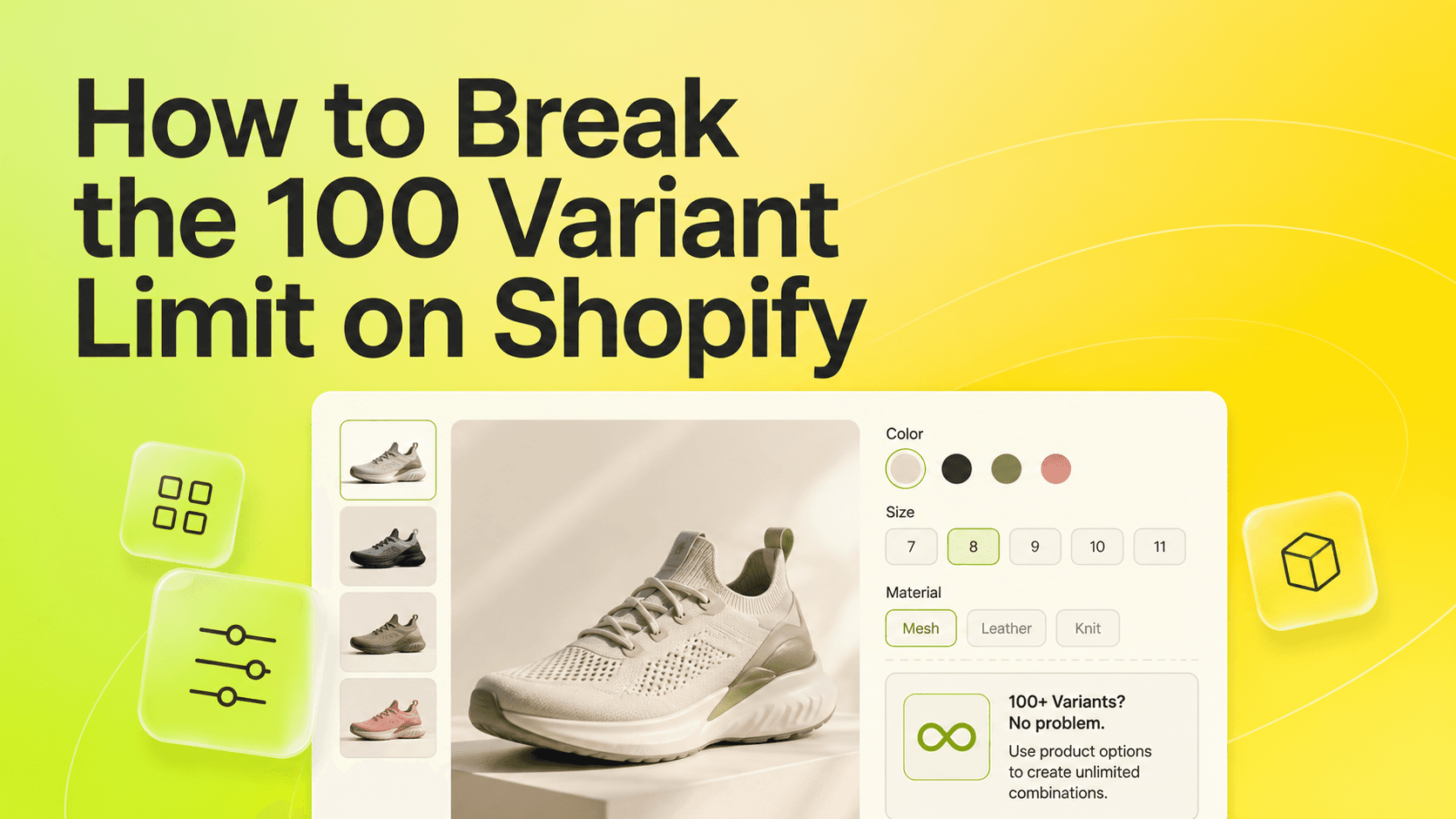
If you searched for the 100 variant limit, start with the good news: it's gone. Shopify now allows up to 2,048 variants per product on every store. What hasn't changed is the limit that actually stops most configurable products - 3 options per product - and the fact that native variants can't charge for an add-on or accept a custom input.
This guide covers how to tell which limit you're really hitting, and the practical ways past each one without editing theme code.
Step 1: Work Out Which Limit You're Hitting
Most "variant limit" problems are one of three different walls:
- You need more than 3 dimensions. Size, Color, Material - and now you want engraving, a gift box or a font choice. This is the most common one, and more variants won't solve it.
- You need more than 2,048 combinations. Rare, but it happens with dimensional products like blinds, cabinets or rugs cut to size.
- You need choices that aren't stock. A name to engrave, a photo to print, a rush-production fee. These have no SKU and no inventory, so they were never a good fit for variants.
If it's only the second one and every combination is a real stocked item, native variants or splitting the product may be enough. For the first and third, you need an options layer.
Step 2: Keep Variants for What Sits on the Shelf
Before adding anything, look at your current variants. Any dimension that doesn't change which physical item ships - gift wrap yes/no, a monogram color, a message card - is spending an option slot and multiplying your variant count for nothing. Move those out first. Often that alone frees the dimension you needed.
A useful test: if the choice runs out of stock, it's a variant. If it can't run out, it's an option.
Step 3: Add the Rest as Product Options
Product options are fields on the product page whose values travel with the line item into the cart and the order. They don't create variants, so they don't count toward the 2,048 variants or the 3 option dimensions.
You can build them two ways:
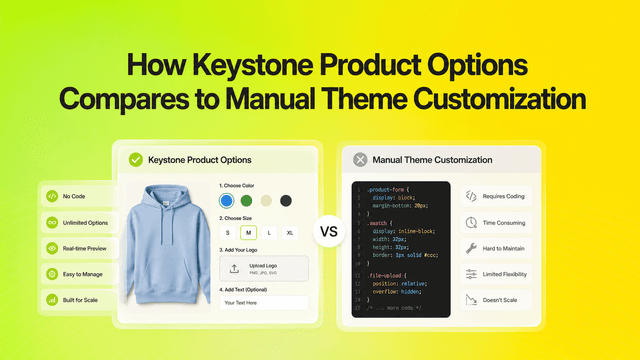
- Theme code with line item properties. Free, and Shopify's own documentation mentions it as a route past the limits. But properties can't change the price, there's no validation or conditional display, and custom code tends to break on theme updates.
- A product options app. Options are configured in a dashboard, render with your theme, and can carry price add-ons, conditional logic and file uploads without code.
Step 4: Price the Add-ons
If an option costs extra - engraving, premium materials, rush production - it needs a price add-on, which native variants and line item properties can't do on their own. Check that the price updates on the product page as the customer chooses, and that the add-on shows clearly in the cart and on the order, so fulfillment sees exactly what was bought.
Step 5: Show Only What's Relevant
Once a product has many options, conditional logic keeps the page usable: the engraving text field appears only when the customer picks engraving, the font list only when there's text to style. Customers see a short form instead of every possible field.
Step 6: Test Before You Roll Out
Set the options up on one product, then place a test order and check three things: the price in the cart matches the product page, every option value appears on the order and packing slip, and the page still loads quickly on mobile. Then apply the same option set to the rest of the catalog.
Where Key Product Options Fits
Key Product Options is our app for this. It's Built for Shopify, launched in November 2025, and rated 4.7 from 30 reviews as of September 2026. As listed on the Shopify App Store:
- Free: 10 option sets, 12 option types, unlimited product options and products, dashboard analytics, 2.0 and legacy theme compatibility.
- Essentials, $9.99/month: unlimited option sets and types, price add-ons, priority live chat and call support.
- Premium, $29.90/month: conditional logic, shared options and B2B catalog pricing.
It includes file and image uploads, bulk color swatch uploads, and a live preview that inherits your theme's style.
For a side-by-side of every approach - native variants, splitting products, theme hacks, hidden add-on products and options apps - see Shopify's Variant Limit in 2026: Every Workaround Compared.
Related reading
- Shopify's Variant Limit in 2026: Every Workaround Compared
- Product Options vs Variants on Shopify: What's the Difference?
- Selling Custom Furniture on Shopify Without Drowning in Manual Orders
Want to see this on your own store? Keystone Product Options & Variants goes past Shopify's variant and 3-option limits with unlimited options, price add-ons and conditional logic - from a free plan, no code, no theme hacks.