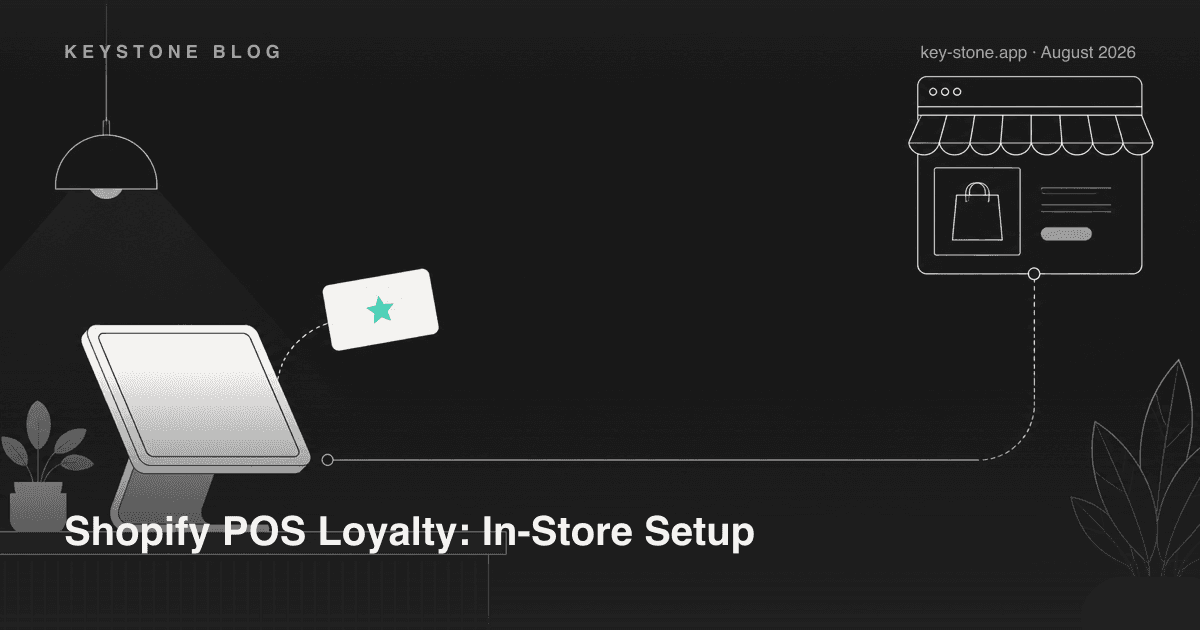
When your loyalty program runs on Shopify POS, three things happen that a web-only program can never deliver: customers earn and redeem points at the register, one points balance follows them across online and retail, and the cashier sees that balance right at checkout - which means staff can say "you have enough points for $5 off, want to use them?" out loud, at the exact moment it matters.
The setup takes five steps:
- Pick a loyalty app that ships a POS extension - and check which plan actually includes it.
- Install the app's tile in Shopify POS.
- Decide on earning parity: same rate in-store as online, or a deliberate in-store bonus.
- Configure the redemption flow the cashier will actually run.
- Train staff with a one-card cheat sheet and a couple of test transactions.
Here is each step in full, plus the edge cases - returns, split tender, offline mode - that most setup guides skip.
Step 1: Pick an App With a POS Extension (and Check the Plan Gate)
Not every Shopify loyalty app supports POS, and among those that do, POS access is gated at different plan levels. As of August 2026:
- Keystone Loyalty includes POS rewards for in-store customers from the $14.99/month Starter plan.
- Smile.io lists Shopify POS support on its free plan.
- Rivo includes Shopify POS integration on its $15/month Essential plan.
- BON Loyalty gates POS earn and redeem at its $29/month Basic plan.
- Appstle Loyalty includes Shopify POS earn and redeem on its $10/month Starter plan.
The plan gate matters more than the feature checkbox. A program that earns online but can't redeem in-store - or the reverse - creates exactly the kind of split-brain experience that makes customers distrust the program. Confirm both directions (earning and redemption) are included at the plan you're paying for before you build anything.
One more filter: make sure the app uses a proper POS UI extension rather than asking cashiers to open a browser tab. If the loyalty flow lives outside the POS checkout screen, staff will skip it on every busy shift.
Step 2: Install the Tile in Shopify POS
Once the app is installed on your store, the POS side is a separate, short step:
- Open Shopify POS on the register device and go to the smart grid (the home screen of tiles).
- Tap Add tile, choose App, and select your loyalty app's extension.
- Place the tile somewhere staff can reach in one tap - first row, near the cart actions.
- Repeat on every register device and every location. Tiles are per-device, and the register nobody configured is the one where the program silently doesn't exist.
Run one test transaction immediately after installing. If the tile can look up a customer and show a points balance, the plumbing works.
Step 3: Set Earning Parity - or a Deliberate In-Store Bonus
Default to the same earning rate in-store as online: one balance, one rate, no explanation needed. Customers should never have to think about where they bought something to know what they earned.
Break parity only on purpose. Two situations justify it:
- You want to drive foot traffic. A standing in-store bonus (say, an extra half point per dollar at the register) gives retail a reason to exist in the program and gives staff a talking point.
- You run in-store events. A double-points weekend that only applies at your physical location is a genuinely local campaign - and it's measurable, because every earn is tagged to the POS channel.
Whatever you choose, write it down as one sentence ("You earn 10 points per dollar, everywhere") - if the rule doesn't fit in one sentence, cashiers won't repeat it and customers won't remember it.
Step 4: Configure the Redemption Flow at the Register
Redemption is where POS loyalty programs quietly fail, because the flow has to work in the ten seconds a checkout actually takes. Configure three things:
- How the discount applies. Points redemptions on POS typically apply as a discount to the current cart. Test that the discount shows on the customer-facing display and on the receipt - customers want to see the reward land.
- Minimum thresholds. Keep the minimum redemption low enough that a first redemption can happen within a customer's first two or three visits. A threshold nobody reaches in-store trains staff to stop mentioning the program.
- What the cashier sees. The ideal screen shows the customer's balance and the rewards they can afford right now, as tappable options. If the cashier has to do points math, the flow is too complicated for a queue.
We wrote a whole post on this last problem - how to add loyalty to Shopify POS without confusing cashiers - and the summary is: the register flow should be at most two taps: look up customer, apply reward.
Step 5: Train Staff With a One-Card Cheat Sheet
Your cashiers are the loyalty widget of your physical store. Give them:
- A one-card cheat sheet taped near the register: the earning rate in one sentence, how to look up a customer (email or phone), how to apply a reward in two taps, and who to ask when something breaks.
- One script line for enrollment: "Want me to add these points to an account? Just need your email." Enrollment at the register is the single biggest thing POS adds to a loyalty program - every walk-in becomes an identified, reachable customer.
- Two test transactions each: one earn, one redeem, on a real device, before their first shift with the program live. Reading about a flow is not the same as having run it.
The Edge Cases That Actually Come Up
- Returns and exchanges. A refund should reverse the points earned on the refunded items. Test a full refund and a partial refund and check the balance both times - this is the most common source of inflated balances.
- Split tender. When a customer pays part cash, part card, points should accrue on the order total, once. Run one split-tender test so you know how your app behaves.
- Offline mode. Shopify POS can keep selling with no connection, but loyalty lookups generally can't. Tell staff the rule: finish the sale, and the customer's points catch up when the register reconnects - never make a customer wait on connectivity.
- Customer lookup misses. In-store customers are matched by email or phone. If a customer has two profiles (an old email online, a phone number in-store), their balance looks wrong. Merge duplicate customer profiles in Shopify admin when staff flag them.
Measure One Number First: In-Store Enrollment
Before revenue attribution, before redemption rate, watch enrollments per hundred POS transactions. It tells you whether staff are actually offering the program, and it's the number training fixes fastest. Once enrollment is steady, compare repeat purchase behavior of enrolled versus non-enrolled retail customers - that difference is the program's in-store case, in one line.
A retail loyalty program that earns, redeems, and enrolls at the register stops being an online perk with a store-shaped blind spot - it becomes the thing that connects your two channels into one customer base.
Related reading
- How to Add Loyalty to Shopify POS Without Confusing Cashiers
- How to Run a POS Loyalty Program That Stays in Sync With Online
- Free Loyalty Apps for Shopify: What You Actually Get at $0
Keystone Loyalty includes Shopify POS earning and redemption from the $14.99 Starter plan (as of August 2026), with VIP tiers at a third of big-name pricing on the $69 Standard plan - done-for-you setup included. See how it works on the Keystone Loyalty page.