If you sell products that use more than one Option Set, you've probably wondered which one shoppers see first on the product page. Now you get to decide.
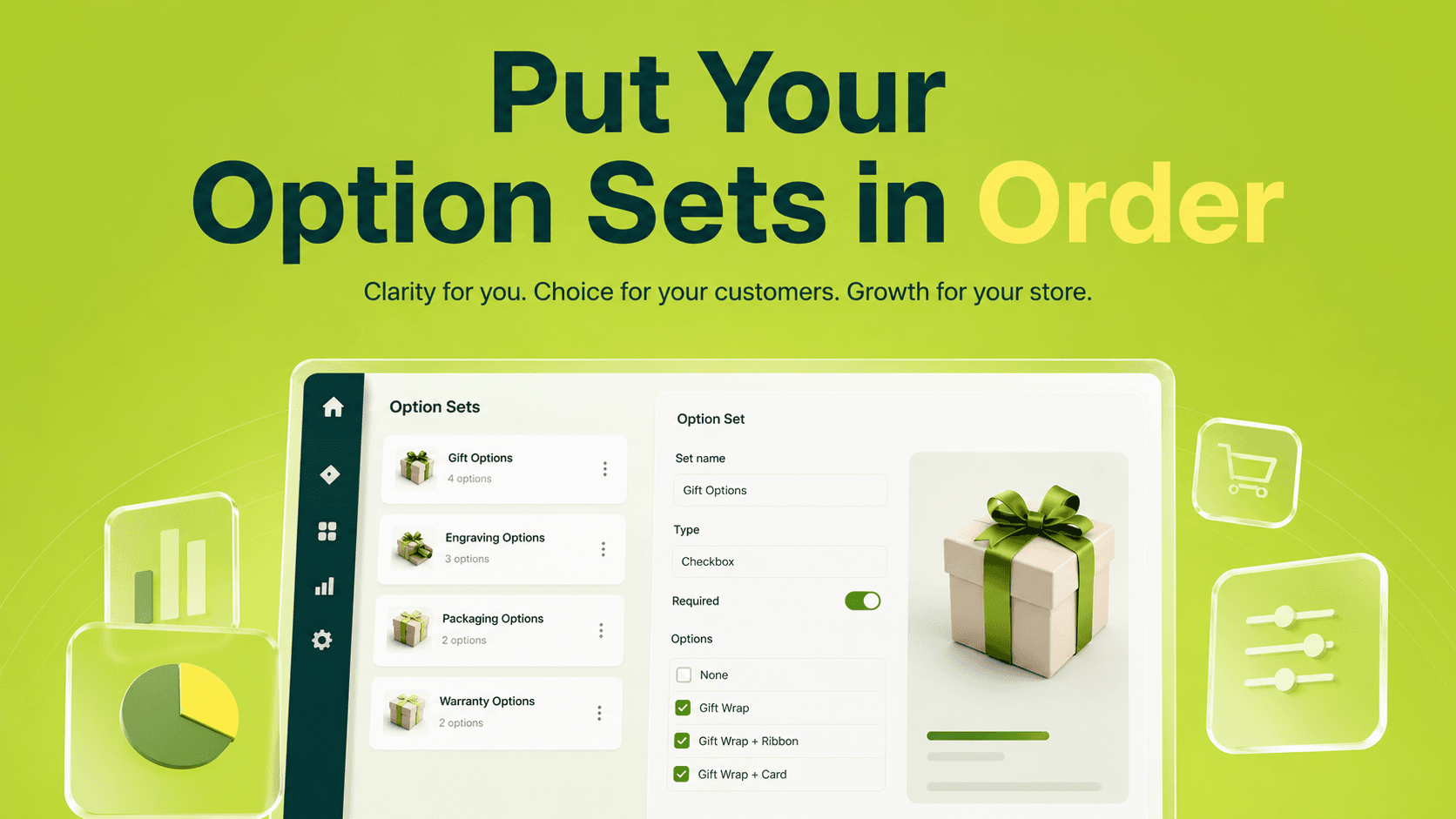
Keystone Product Options has a new optional setting called Order. Give an Option Set a number, save, and that set knows its place in the lineup.
Why we built this
A lot of you run real customization flows. One Option Set might handle monograms for an entire collection. Another might add gift wrapping fields to a specific item in that same collection. Both turn up on the same product page, and until now the order they appeared in came down to the app's default logic.That worked, but it didn't always match what you wanted shoppers to see first. The Order field fixes that.
How it works
Open any Option Set and look for the Order field next to the name. Type a whole number. Save. Done.When a product has two or more Option Sets active at the same time, KeyPO lines them up from the lowest number to the highest. Sets without an Order value sit underneath the ordered ones. That's the whole rule.
A few details worth knowing:
- The Order field accepts whole numbers of 1 or higher
- Changes show up on your storefront immediately, with no cache clearing
- Clearing the number and saving puts the set back to default ordering
A quick example
Say you sell custom shirts, and one product has three Option Sets active at the same time:- "Monogramming" with Order set to 10
- "Sizing options" with Order set to 20
- "Gift wrapping" with no Order value
Now change your mind. Move Monogramming to Order 30 and Sizing options to Order 10. Save the change. The next time the product page loads, Sizing options will be on top.
The lowest number wins. Empty values fall to the bottom. That's the whole pattern.
You don't have to use it
This is the part we want to be clear about. The Order field is optional. If you leave it empty on every Option Set, nothing changes. Your storefront keeps working exactly the way it does today.You can also set an Order on just the sets you care about and ignore the rest. Mix and match. The app handles it.
A small tip that saves time later
When you start using Order values, try spacing them out. Use 10, 20, 30 instead of 1, 2, 3.The reason: six months from now when you build a new Option Set that needs to slot between two existing ones, you can give it a 15 and move on. In the future you will appreciate not having to renumber everything.
Who'll get the most out of this
This feature is built for stores with layered customization. You probably know if that's you:- Apparel shops where monogramming, sizing, and gift options stack on the same product
- Custom product makers with multiple personalization steps on one item
- Home and garden stores where some Option Sets apply to whole collections and others apply to single products
- Any catalog where two or more Option Sets land on the same product page
Try it out
Head to your Option Sets page in Keystone Product Options, open a set, and find the Order field next to the name. Pick a product that has more than one set applied, give them numbers, and preview your storefront.A small setting. A more intentional product page.
Related reading
- Shopify Sidekick Now Knows Your Product Options
- How to Offer Unlimited Product Options and Variants with Keystone
- How to Hide and Show Product Variants Based on Customer Tags
Want to see this on your own store? Keystone Product Options & Variants gives you unlimited options beyond Shopify's variant and 3-option limits, live price previews and conditional logic — from a free plan, no code, no theme hacks.