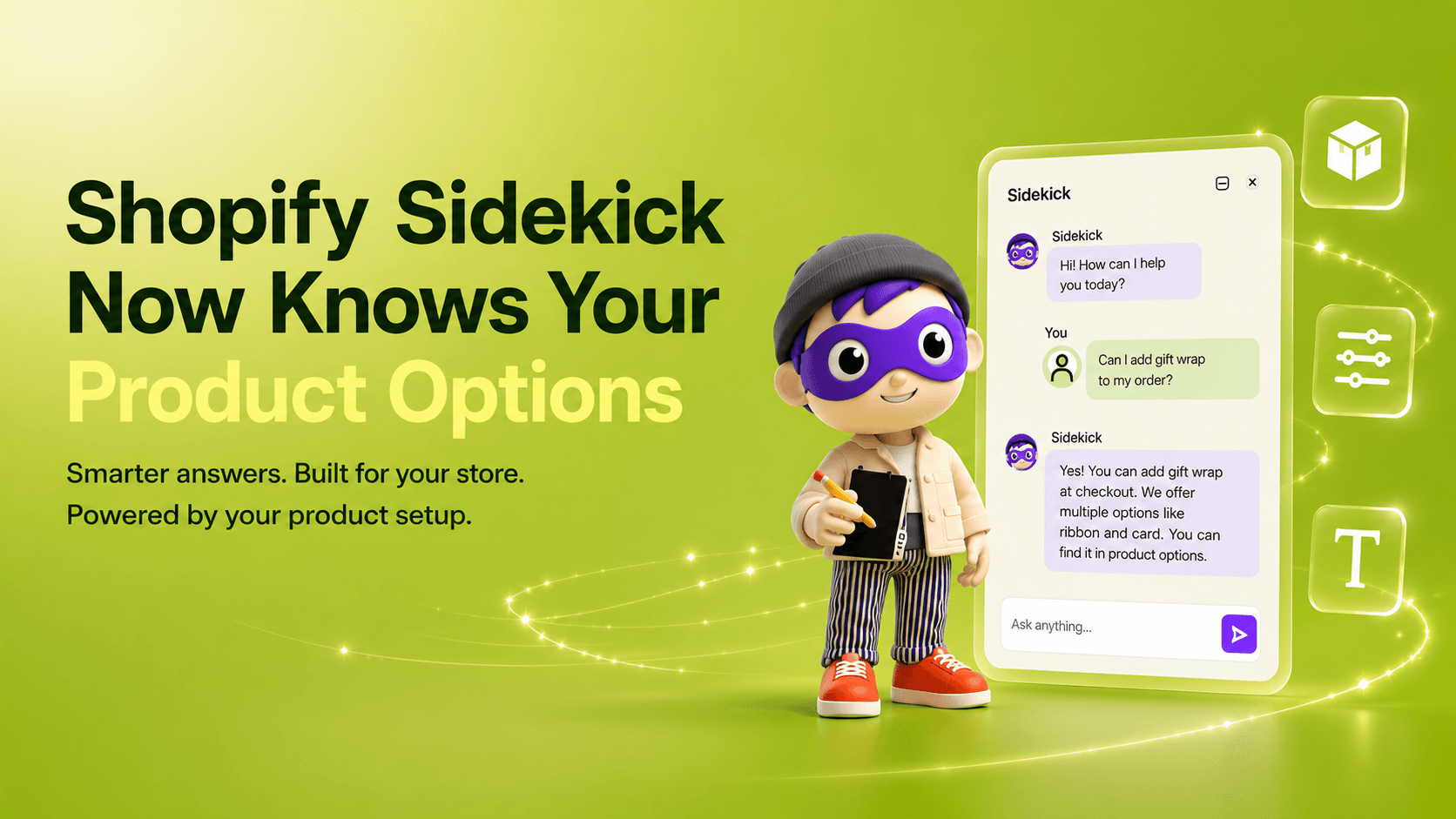
If you've ever spent five minutes clicking through screens trying to remember which option sets are attached to a product, this one's for you. Keystone Product Options now connects with Shopify Sidekick. You can ask questions about your option sets, app setup, and customization in plain language, right from the Shopify admin.
Why we built this
Customization gets complicated fast. A growing store might have dozens of option sets, each with its own products, collections, conditional rules, and pricing logic. Finding a specific answer often meant opening the app, clicking into the right set, scrolling to the right field, and trying to remember where everything lives.Now you can just ask. Sidekick reads your live Keystone Product Options data and gives you the answer, often with a link to the relevant help article if you want to go deeper.
What you can ask
A few examples of questions Sidekick can answer:- Which option sets apply to my Classic Tee product?
- How many active option sets do I have?
- Show me the conditional logic on my Gift Wrapping set.
- How do I make an option charge extra?
- How do I install the app block?
- What's my migration status?
What Sidekick can actually look up
The range is broader than most people expect on first read, so it's worth spelling out:Your option sets. Find sets by name, status, or what they're assigned to. See which sets apply to a specific product or collection.
The options inside those sets. What type each option is, whether it's required, and whether selecting it adds to the price.
Your conditional logic. The rules you've set up to show or hide options based on other selections.
Your app setup. Storefront settings, price display formats, plan features, your current limits, onboarding progress, and migration status if you're coming over from SCPO.
Help articles. When a question calls for guidance rather than data ("how do I install the app block?"), Sidekick surfaces the relevant article so you don't have to leave the conversation to find it.
What stays in your hands
This part matters: Sidekick can look things up and explain things, but it does not make changes to your store. It will not create option sets. It will not edit options. It will not toggle settings or publish anything.Every change still happens inside Keystone Product Options, exactly the way it does today. Sidekick is there to help you find answers faster, not to take the wheel.
We chose to start this way on purpose. An AI helper that confidently looks things up and points you to the right place is more useful day to day than one that tries to do too much and gets it wrong.
A quick example
You're working on a new collection page and you can't remember which option sets are applied to one of the products. The old path: open Keystone Product Options, find the option sets list, filter by product, scroll, read.The new path: ask Sidekick "what option sets apply to my Vintage Tote Bag?" Sidekick reads your live data and answers, naming each set and noting how it's assigned. If you want to make a change after seeing the answer, you still hop into the app to do it. But the question itself got answered in seconds.
Who'll get the most out of this
Sidekick earns its keep fastest if you:- Manage more than a handful of option sets and sometimes lose track of which is which
- Use conditional logic and want to verify rules without opening every set individually
- Are migrating from SCPO and want quick answers about your progress
- Onboard team members who don't know KeyPO inside out
- Just prefer asking a question over hunting through screens
Try it out
Open Shopify Sidekick in your Shopify admin and try something simple, like "how many active option sets do I have?" Once you see how it answers, the bigger questions get a lot easier to ask.Related reading
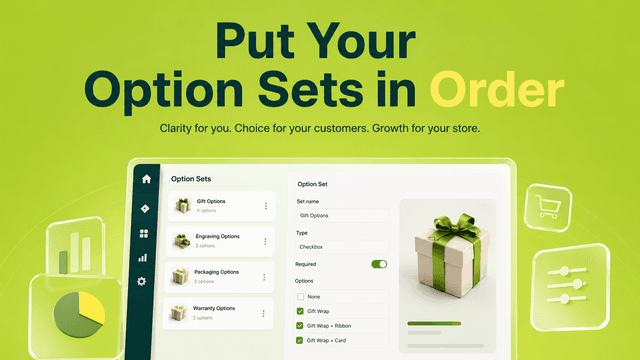
- Put Your Option Sets in Order
- How to Offer Unlimited Product Options and Variants with Keystone
- Meet Sidekick: Ask Your Shopify Loyalty Program Anything, in Plain Language
Want to see this on your own store? Keystone Product Options & Variants gives you unlimited options beyond Shopify's variant and 3-option limits, live price previews and conditional logic — from a free plan, no code, no theme hacks.