

Appearance
Currency Pricing
Control how option prices are displayed in different currencies.
Overview
Currency Pricing settings determine how option prices are formatted and rounded when shown to customers shopping in non-default currencies.
Currency Display Mode
Choose how the currency is presented alongside the price.
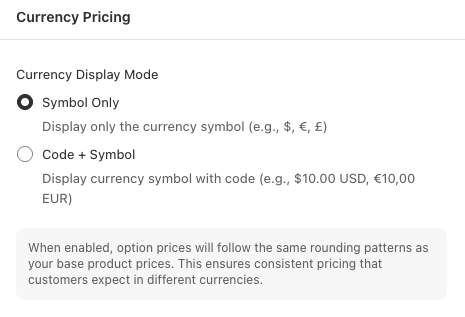
| Mode | Description | Example |
|---|---|---|
| Symbol Only | Display only the currency symbol | $, €, £ |
| Code + Symbol | Display the currency symbol along with the code | $10.00 USD, €10,00 EUR |
Symbol Only
Cleanest presentation — the currency symbol is shown without an accompanying code.
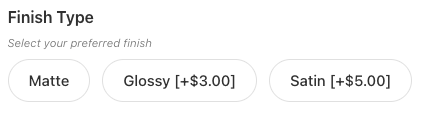
Best for:
- Stores selling primarily in one currency
- Maximum readability
- Compact UI
Code + Symbol
Shows the currency code next to the price, removing ambiguity in multi-currency stores.
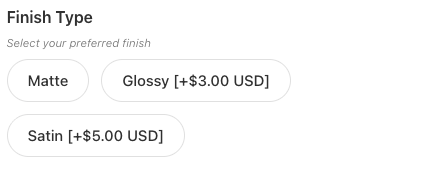
Best for:
- International stores selling in multiple currencies
- Stores where customers may be confused by similar symbols (e.g., USD vs CAD)
- Maximum clarity
Round Prices After Currency Conversion
When enabled, option prices follow the same rounding patterns as your base product prices. This ensures consistent pricing that customers expect in different currencies.
When enabled:
- Applies common rounding rules to match Shopify's product pricing behavior
- EUR prices end in .95
- USD prices rounded to whole dollars
- Option prices follow same patterns as base product prices
When disabled:
- Exact converted amounts shown
- No rounding applied
- May result in unusual prices (e.g., €12.73)
Recommended
Enable this setting to maintain pricing consistency across your store. Customers expect prices to follow familiar patterns for their currency.
How to Access
- Navigate to App Settings > Storefront Settings
- Open Currency Pricing
- Choose your Currency Display Mode
- Toggle Round Prices After Currency Conversion as needed
- Click Save in the contextual save bar
Best Practices
- Use Symbol Only for single-currency stores; switch to Code + Symbol if you sell internationally
- Enable rounding for professional appearance
- Match Shopify's pricing patterns
- Test in all currencies you support