

Appearance
Migrate from SC Product Options
Seamlessly move your product options data from SC Product Options (SCPO) to Keystone Product Options (KeyPO) — with zero downtime.
Why Migrate?
We built Keystone Product Options from the ground up as a modern, Shopify-native replacement for SC Product Options. Here's what changes for you:
| SC Product Options (Legacy) | Keystone Product Options (New) | |
|---|---|---|
| Architecture | Older Shopify standards | Fully Shopify-native, latest standards |
| Performance | Standard | Significantly faster and lighter |
| Option Types | Limited set | More types with richer customization |
| Conditional Logic | Basic | Advanced conditional logic |
| Shopify Plus | Limited support | B2B pricing & POS support |
| Development | Maintenance only | Actively developed and future-proof |
Why this matters for your business
More option types and richer customization mean more revenue opportunities through upsells and add-ons. A cleaner UX saves you time managing options, and your customers get a better storefront experience. Plus merchants unlock B2B pricing and POS use cases.
How Long Will This Take?
- Shopify 2.0 theme with app blocks: about 10–15 minutes
- Legacy (1.0) theme or custom theme: 30–60 minutes, and usually requires our support team to clean up old SCPO code safely
If you are unsure whether your theme supports app blocks, follow the check below.
Before You Start: Check Your Theme Type
Shopify 2.0 themes let you add App blocks in the theme editor. Legacy (1.0) themes do not.
To check your theme:
- Go to Shopify Admin → Online Store → Themes
- Click Customize on your active theme
- Open the Product page template
- Click Add block in any section and look for an Apps tab
If you see an Apps tab, your theme supports app blocks. If not, you have a legacy theme.
Faster option: Ask Shopify Sidekick
You can also open Shopify Sidekick (the AI chat in your Shopify admin) and ask: "Is my theme a 2.0 theme or a legacy theme?" It can tell you directly so you know which path to follow.
Important
If your theme is legacy (1.0), we strongly recommend using our free support for the installation. The migration will still be done on your existing theme, but we handle the manual code changes and SCPO cleanup for you.
Migration Steps
The migration requires zero downtime — your existing SCPO options continue working on your live store while you set up Keystone on a backup theme.
Step 1: Install Keystone Product Options
Install Keystone Product Options from the Shopify App Store. Once installed, open the app from your Shopify admin.
Step 2: Back Up Your Live Theme
Before making any theme changes, duplicate your current live theme and work on the backup:
- Go to Shopify Admin → Online Store → Themes
- Click ⋯ (Actions) on your live theme
- Select Duplicate
Use this backup theme for the rest of the migration. Keep your live theme untouched until everything is validated. Publish the backup only when you are ready.
INFO
Working on a backup protects your live store and lets you safely disable or remove SCPO without interrupting sales.
Step 3: Import Your Data
- Open Keystone Product Options in your Shopify admin
- Go to Settings
- Find the Data Import card and click Start Import
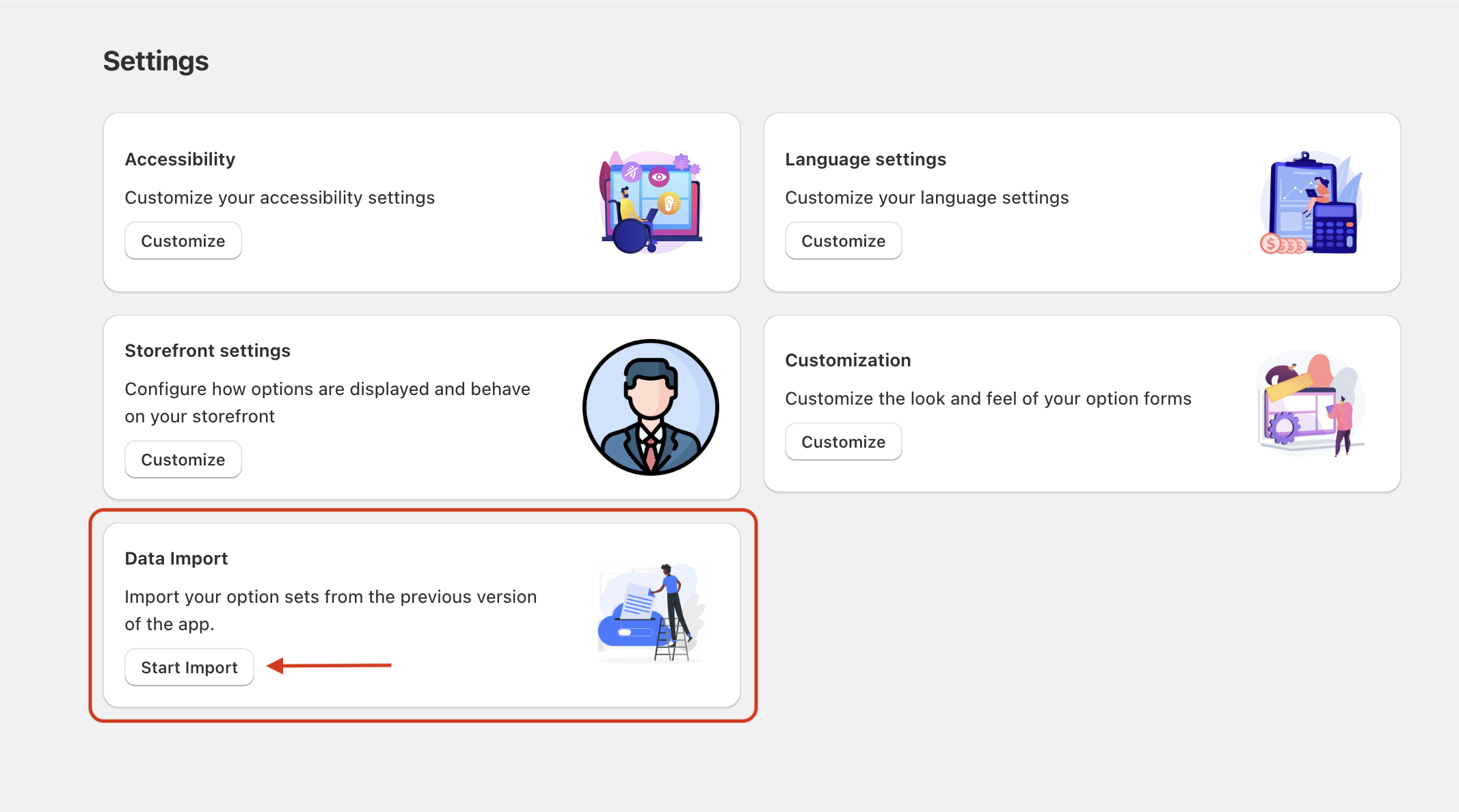
The import automatically detects your Shopify domain in SC Product Options and begins migrating your option sets.
Wait for the import to complete — this usually takes just a couple of minutes depending on how many option sets you have.
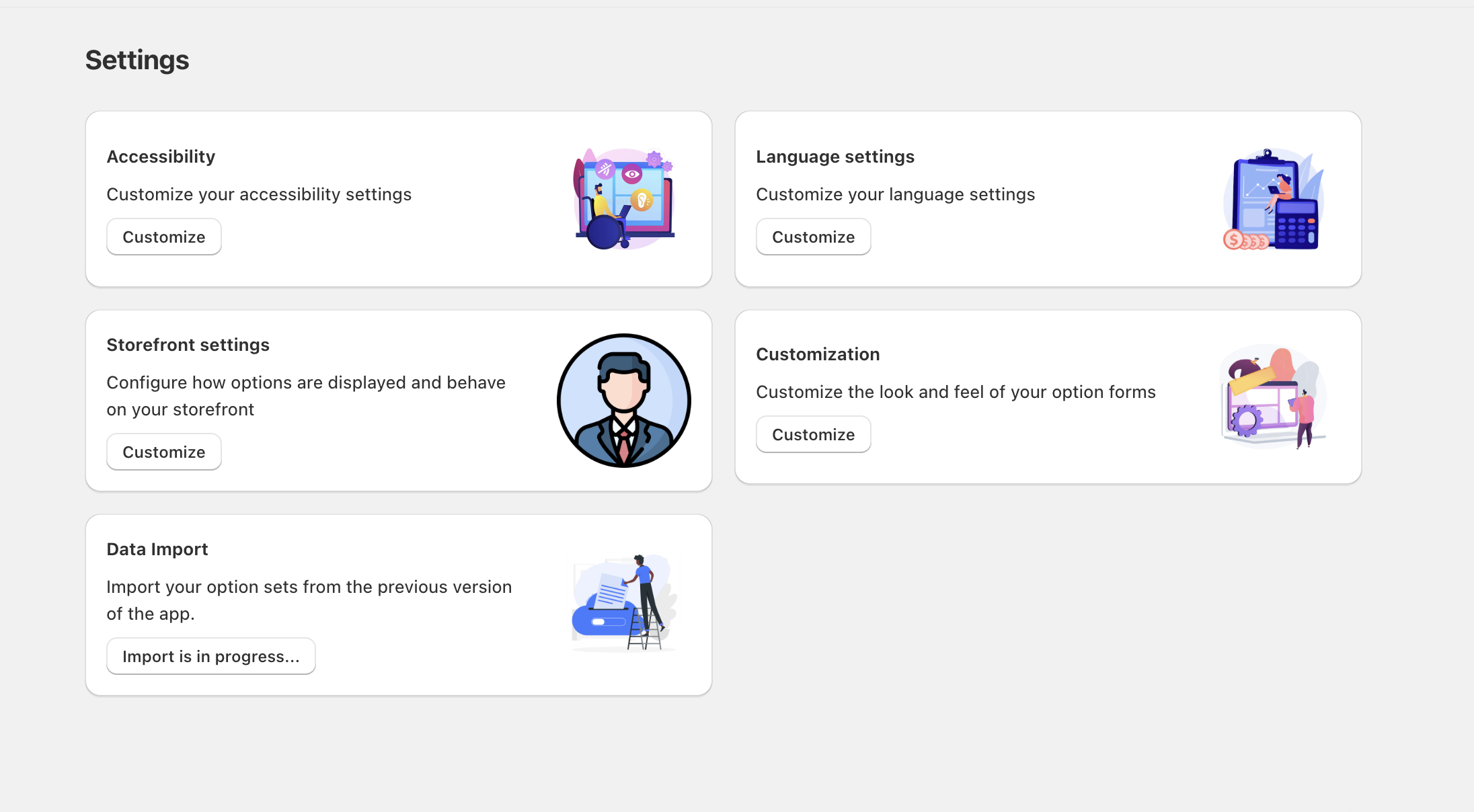
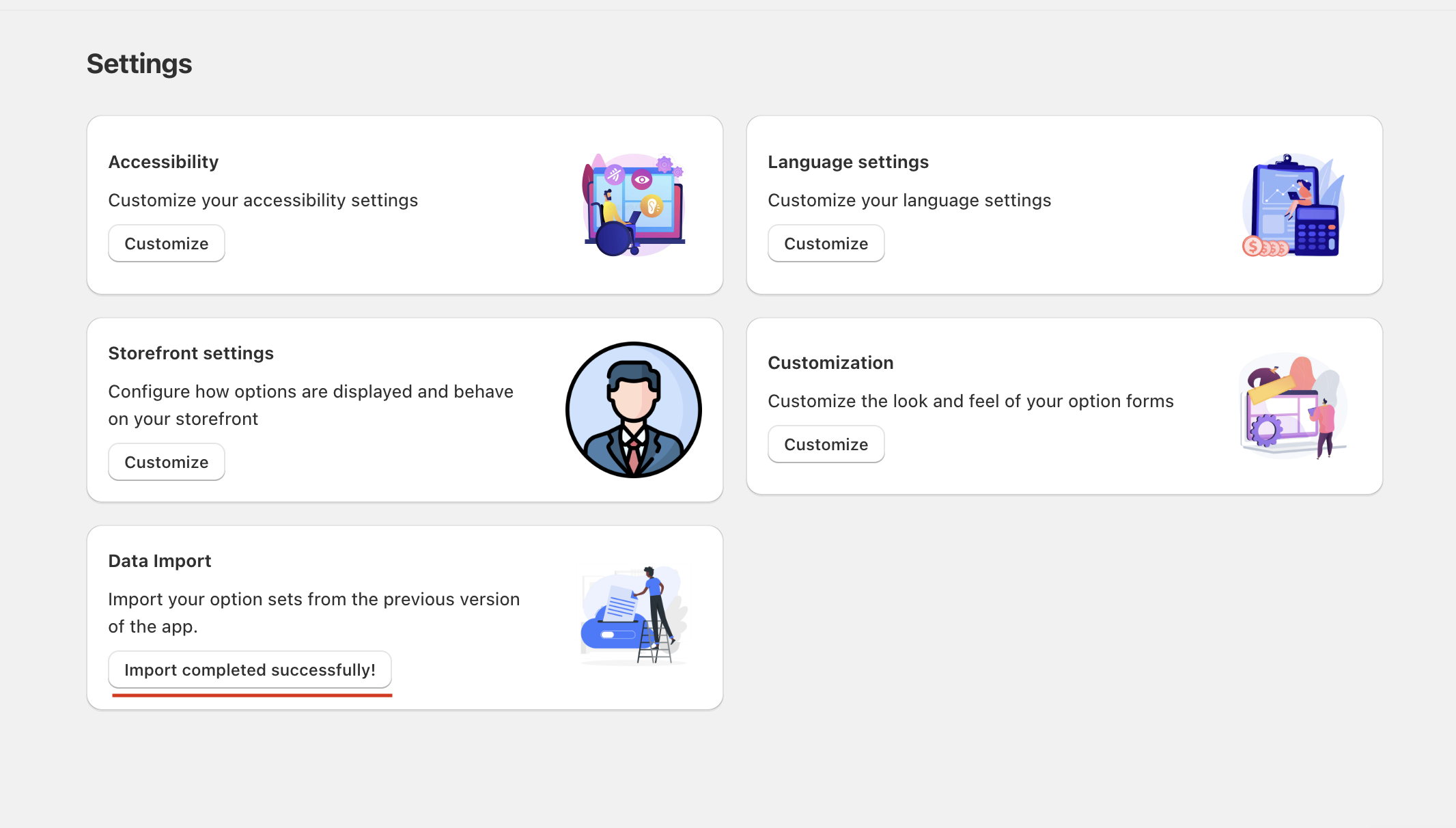
Once finished, you'll see a confirmation message.
Step 4: Add Keystone to Your Theme
Choose the path that matches your theme type.
Option A: Shopify 2.0 Theme (App Block)
- Go to Online Store → Themes and click Customize on your backup theme
- Navigate to the Product page using the page selector at the top. Select your Default product template.
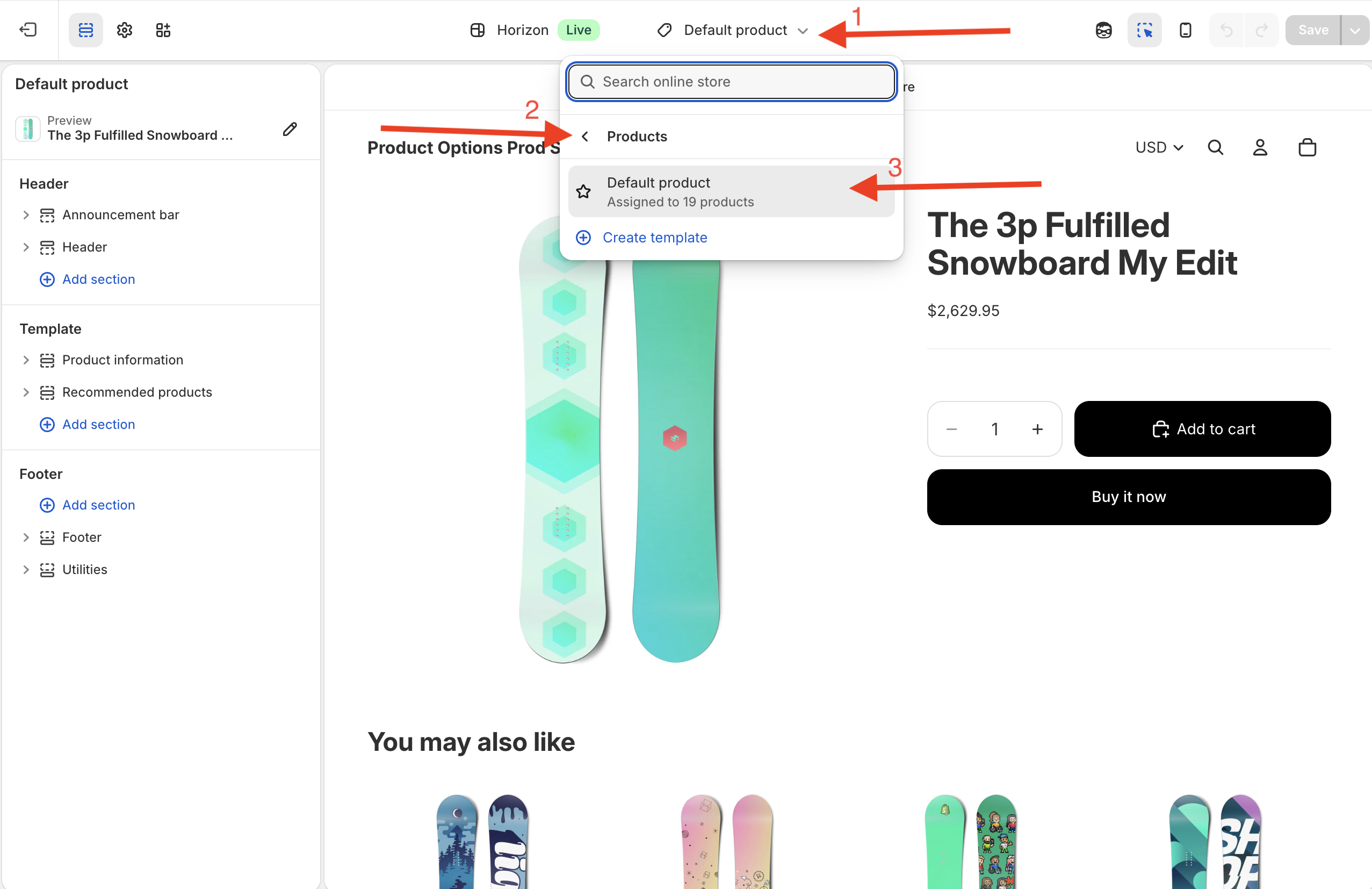
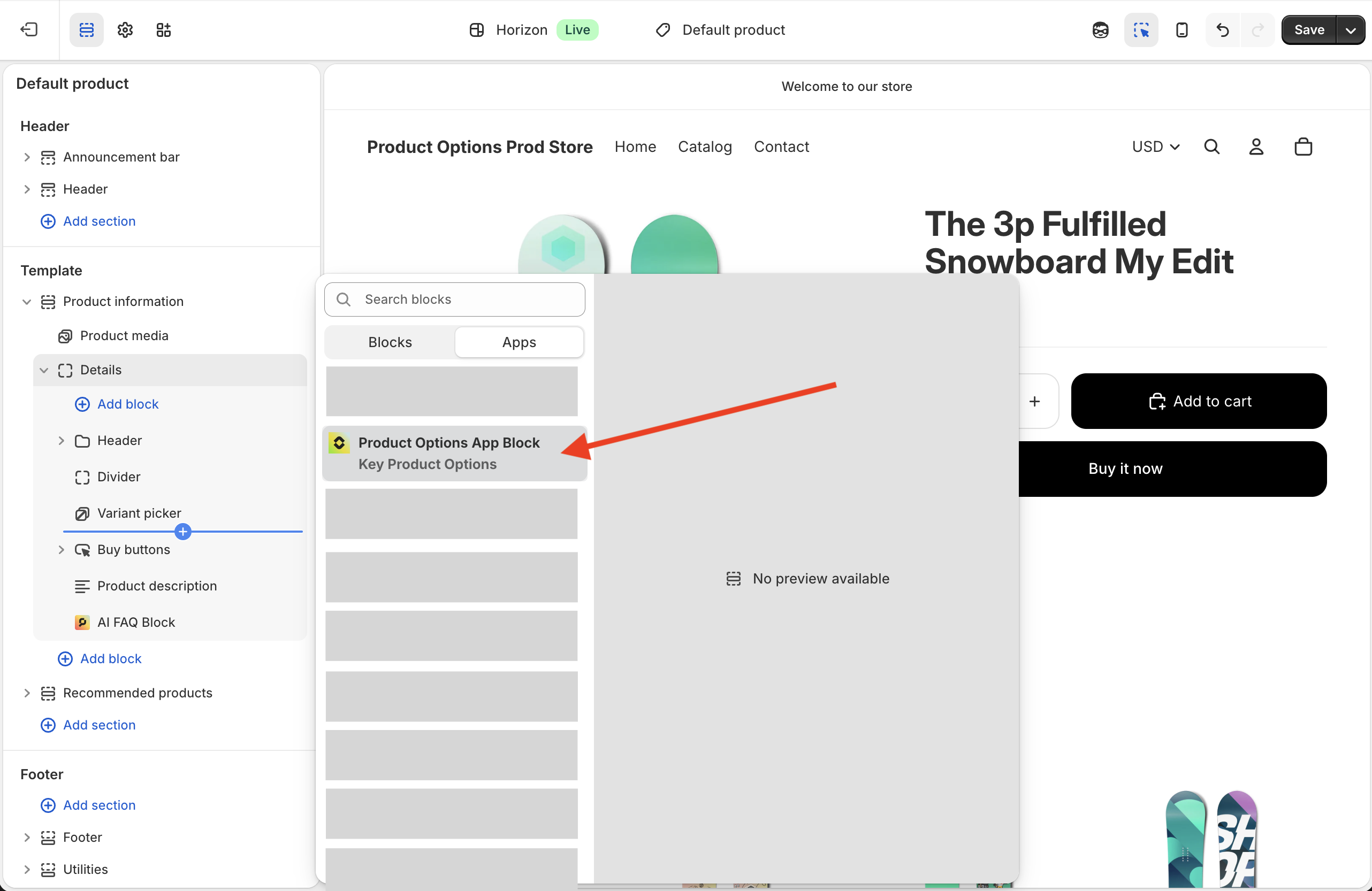
- In the left sidebar, find the section where you want to add the block — most commonly just above the Buy buttons block
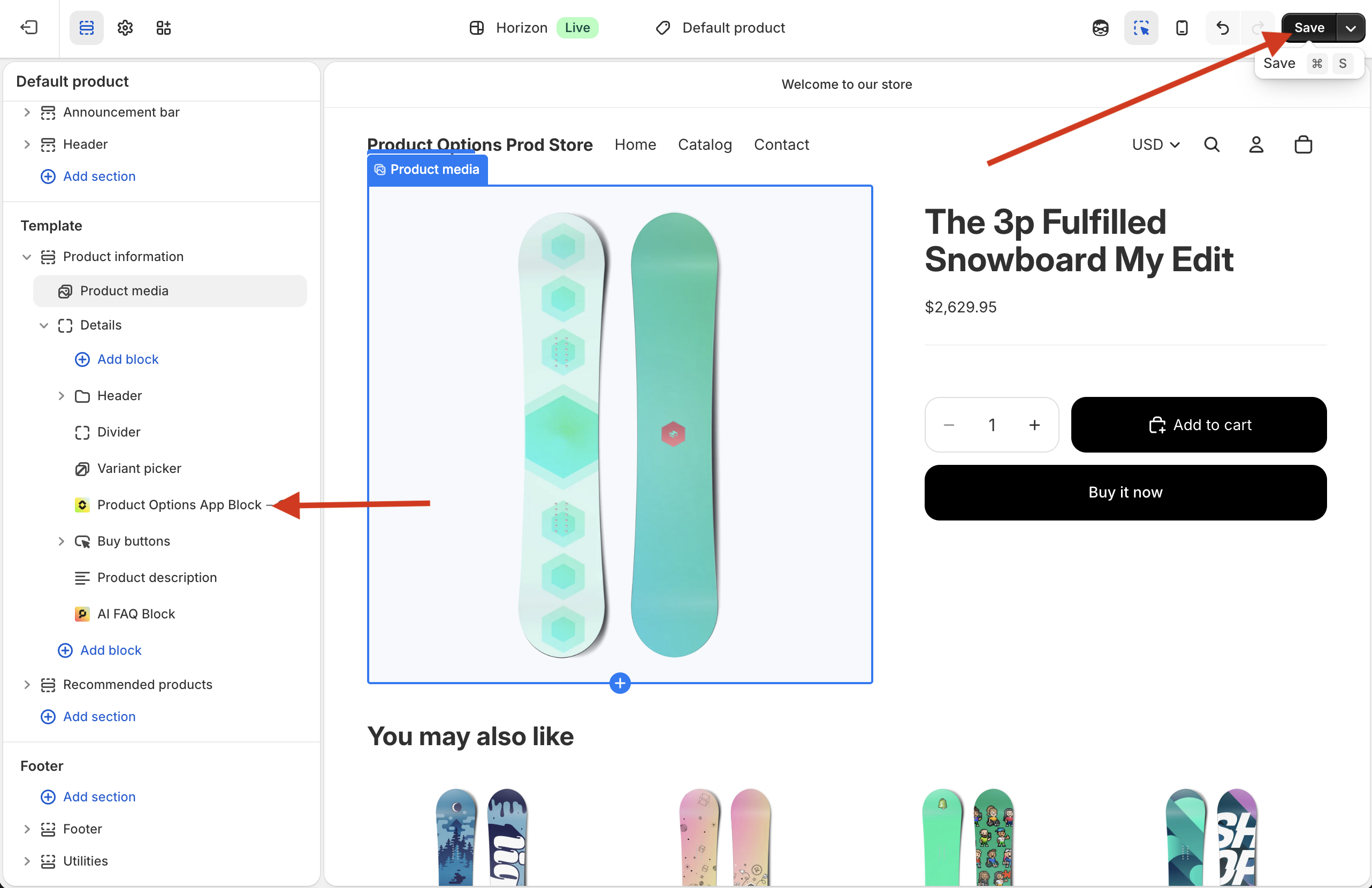
- Click Add block, switch to the Apps tab, and select Product Options App Block from Key Product Options
- Click Save in the top-right corner of the theme editor
For more details, see the Add App Block guide.
Option B: Legacy (1.0) Theme
If your theme does not support app blocks, contact our support team for free installation. We will:
- Add the Keystone code to your theme
- Safely disable or remove SCPO code
- Make sure your product pages and Add to Cart button keep working
Email us at support@key-stone.app or use the chat widget inside the Keystone app.
Why we recommend support for legacy themes
SCPO has been around for over 13 years and has changed owners several times. The leftover code can vary widely depending on when and how it was installed. Our support team handles these cleanups every day and will do it for you at no charge.
If you prefer to do it yourself, see the Legacy Theme Installation guide. This is an advanced process.
Step 5: Validate Keystone on Your Backup Theme
Preview your backup theme by clicking ⋯ → Preview on it, then check a few products that had options in SCPO:
- ✅ Options appear correctly on product pages
- ✅ All option types are displaying as expected
- ✅ Prices and add-ons are working
- ✅ Conditional logic triggers properly
- ✅ Add to cart works with selected options
If you see duplicate options during validation:
- Shopify 2.0 theme: temporarily disable the SCPO App embed in the theme editor.
- Legacy (1.0) theme: duplicate options usually come from SCPO code in your theme files. Contact our support team to remove it safely.
Step 6: Disable SCPO on Your Backup Theme
Shopify 2.0 themes
On your backup theme, disable the SCPO app embed:
- In the theme editor, open App embeds
- Find the SC Product Options embed
- Toggle it off and save
Then check again that Keystone options still display and the Add to Cart button still works.
Legacy (1.0) themes
SCPO is usually embedded directly in your theme code. Do not edit it yourself unless you are confident. Contact our support team and we will disable or remove it safely.
If disabling SCPO breaks the Add to Cart button or affects Keystone options, do not remove SCPO code yourself. Contact our support team and we will clean it up safely.
Step 7: Uninstall SC Product Options
Once Keystone is fully validated and SCPO is disabled without issues:
- Go to Shopify Admin → Settings → Apps and sales channels
- Find SC Product Options
- Click Uninstall
Old SCPO code may remain in your theme. In most cases it will not affect your store, but if you notice anything wrong after uninstalling, contact our support team.
WARNING
Only uninstall SCPO after you have fully validated that Keystone options are working correctly on your backup theme.
That's It!
You've successfully migrated to Keystone Product Options. Your store now benefits from:
- More option types and richer customization capabilities
- Advanced conditional logic for smarter option display
- Better performance with a modern, Shopify-native architecture
- Active development with new features and improvements
- Shopify Plus support including B2B pricing and POS
Need Help?
We offer free migration support for every merchant, especially if you are using a legacy theme or need help removing old SCPO code.
- 📧 Email: support@key-stone.app
- 💬 In-app chat: open the chat widget in the bottom right corner inside the Keystone app
- 📚 Documentation: Getting Started Guide
- ❓ FAQ: FAQ & Troubleshooting
INFO
Most merchants on Shopify 2.0 themes complete the migration in under 15 minutes. Legacy theme migrations usually take longer and are safest when our support team handles the theme-code changes for you.