

Appearance
Add App Block
Add the Keystone Product Options app block to your theme so custom options display on your product pages.
Overview
The app block is the visual component that displays your option sets on product pages. You only need to add it once to your theme – it will automatically show the correct options for each product based on your option set assignments.
One-Time Setup
Add the app block once, and it works for all products with assigned option sets.
Check Your Theme First
The Keystone app block only works with Shopify 2.0 themes. Before continuing, confirm your theme supports app blocks:
- From your Shopify admin, go to Online Store → Themes
- Click Customize on your active theme
- Open the Product page template
- Click Add block in any section and look for an Apps tab
If you see an Apps tab, you can continue with the steps below. If you do not see an Apps tab, your theme is a legacy (1.0) theme — see the Legacy Theme Installation guide or contact our support team for free installation.
Faster option: Ask Shopify Sidekick
You can also open Shopify Sidekick (the AI chat in your Shopify admin) and ask: "Is my theme a 2.0 theme or a legacy theme?" It can tell you directly whether the app-block steps below will work for you.
Adding the App Block
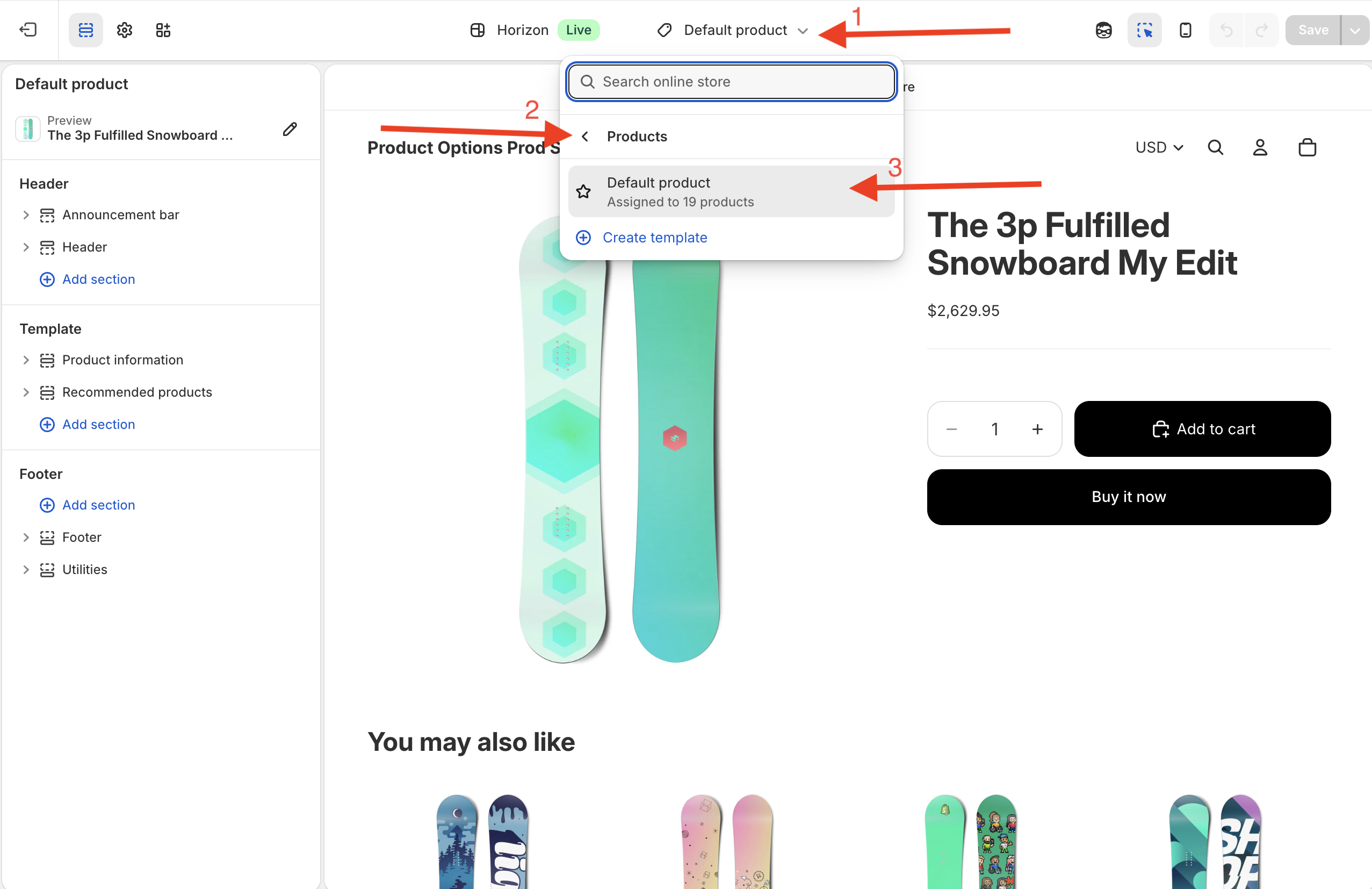
Step 1: Access Theme Customization
- From your Shopify admin, go to Online Store > Themes
- Click Customize on your active theme
- Navigate to a Product page using the page selector at the top. Select your Default product template.
Step 2: Add the Keystone App Block
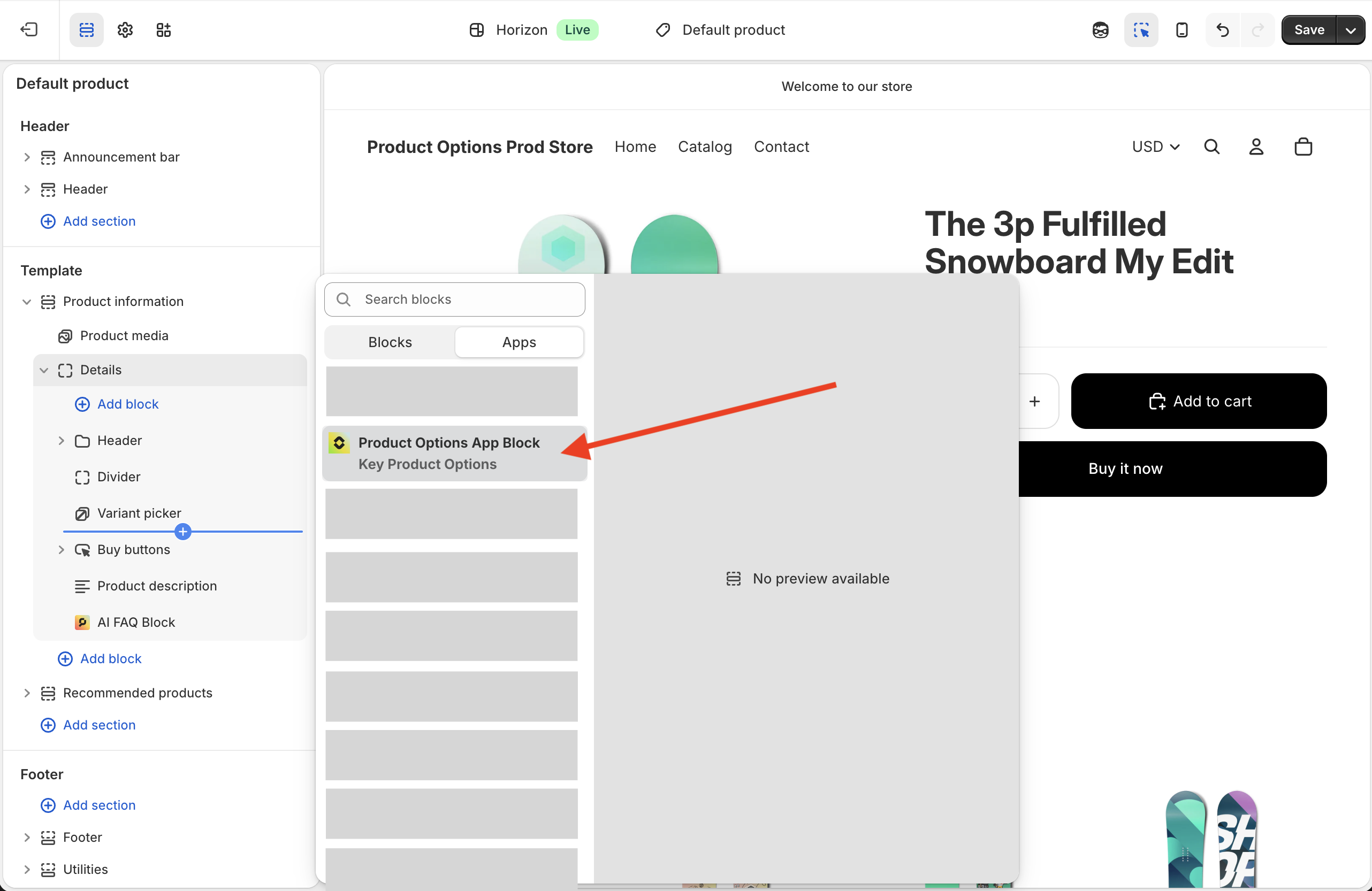
- In the theme editor sidebar, click Add block in the section where you want options to appear (recommended: just above the Buy buttons block)
- Switch to the Apps tab and select Product Options App Block from Key Product Options
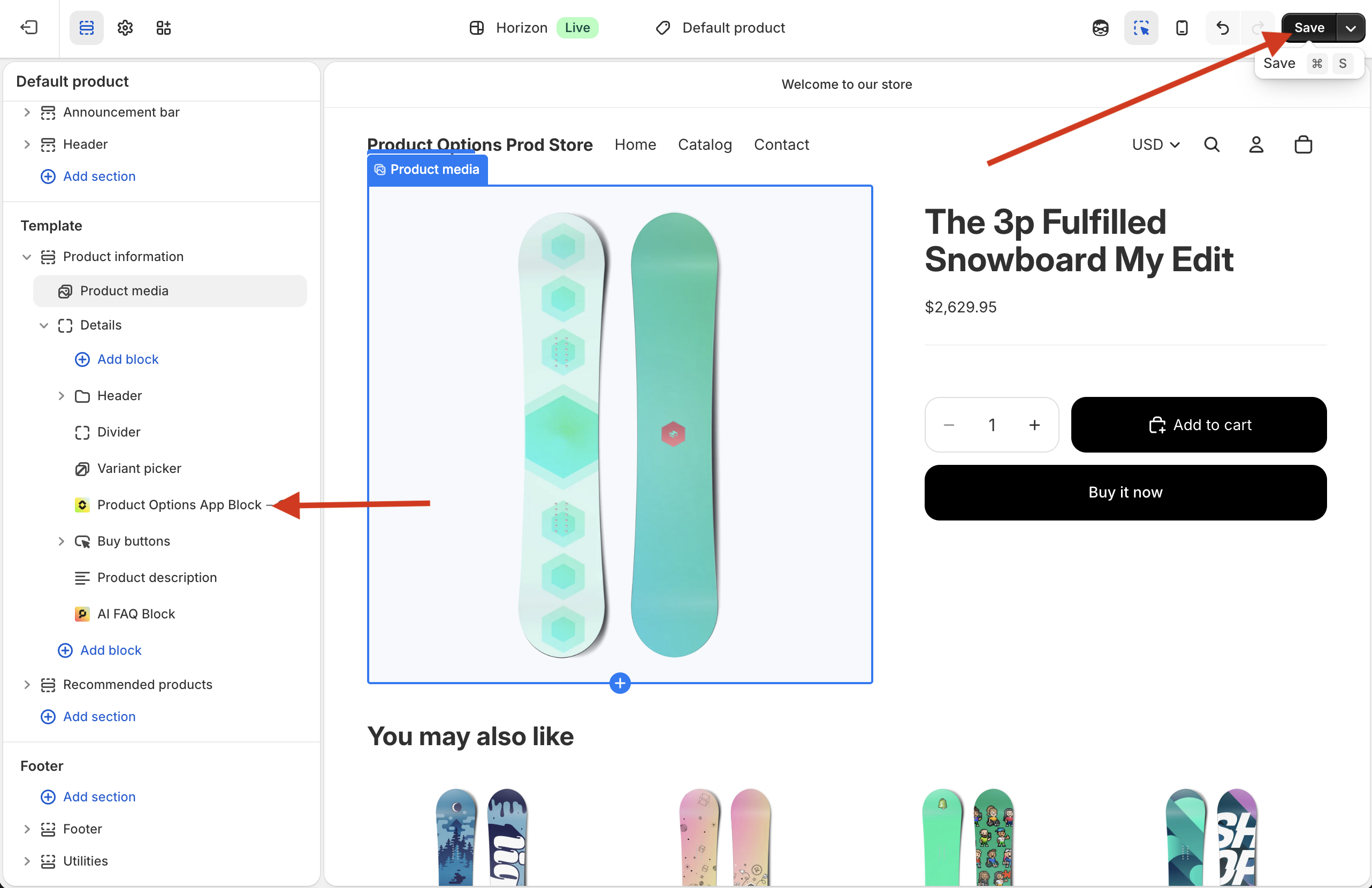
- Click Save in the top-right corner
Best Practice
Place the app block above the "Add to Cart" button and quantity selector for the best user experience. This ensures customers see and select options before adding products to their cart.
Positioning the App Block
Recommended Placement
Above the quantity selector – This is the most common and user-friendly position because:
- Customers see options before choosing quantity
- It follows natural reading flow from top to bottom
- Options are clearly visible above the purchase action
To reposition, simply drag the block up or down in the theme editor sidebar.
Verifying the Installation
After adding the app block:
- Click Save in the theme editor
- Open your online store in a new tab
- Navigate to a product with an assigned option set
- Confirm the options display correctly
No Options Showing?
If you don't see options, verify that:
- You've saved the theme changes
- The product has an option set assigned (learn more)
- The app block is enabled (not hidden)
Managing the App Block
Show/Hide the Block
In the theme editor:
- Select the Keystone Product Options block
- Use the visibility toggle or settings panel
- Save your changes
Remove the Block
If you need to remove the app block:
- Select the block in the theme editor
- Click the trash/delete icon
- Save your changes
Theme Updates
If you switch themes or update your current theme, you may need to re-add the app block. Always check your product pages after theme changes.
Theme Compatibility
The Keystone app block works with Shopify 2.0 themes that support app blocks. This includes:
- Dawn (Shopify's default theme)
- Most modern Shopify themes
- Custom themes built with 2.0 architecture
Using a Legacy Theme?
If you're using an older theme (1.0) or a custom theme that doesn't support app blocks, you can still use Keystone Product Options with manual installation. See our Legacy Theme Installation Guide for step-by-step instructions.
Next Steps
Once the app block is added:
- Create option sets for your products
- Assign products to option sets
- Customize the appearance to match your brand