

Appearance
Language Settings
Configure language strings for customer-facing UI elements.
Overview
Language Settings let you customize the text shown to customers in option-related UI — validation messages, out-of-stock notices, and other strings that appear on the storefront.
Storefront Only
These strings are shown to customers on your storefront. To change the admin interface language, see App Settings > Language Settings.
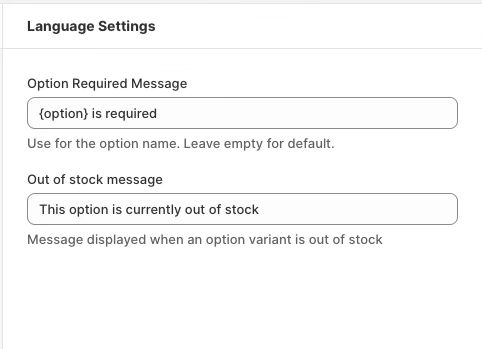
Option Required Message
Validation message shown when a required field is not completed.
Default: {option} is required
Variable:
{option}— Replaced with the actual option name
Leave empty to use the default message.
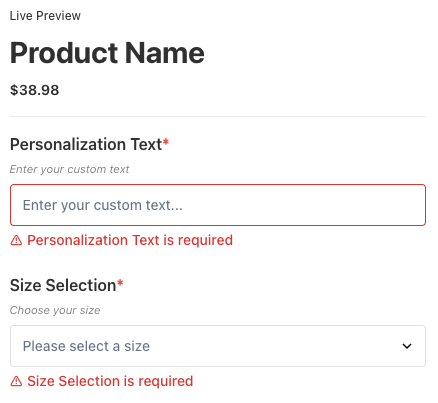
Live Preview
When a customer tries to add a product to cart without filling in required options, the message appears below each incomplete field:
Minimum Selections Message
Validation message shown when a customer has picked fewer values than an option's Min selections allows. It applies to multi-select options with Limit Selection enabled.
Default: Please select at least {min} option(s).
Variables:
{option}— Replaced with the actual option name{min}— Replaced with the minimum for that option
Leave empty to use the default message.
Maximum Selections Message
Validation message shown when a customer tries to pick more values than an option's Max selections allows. The extra pick is refused and this message appears under the option.
Default: You can select up to {max} option(s).
Variables:
{option}— Replaced with the actual option name{max}— Replaced with the maximum for that option
Leave empty to use the default message.
One wording, every option
Both messages are written once and used by every option that has a selection limit — the numbers come from each option's own settings. For example, Pick {max} or fewer for {option} reads "Pick 3 or fewer for Toppings" on an option with a maximum of 3.
Out of Stock Message
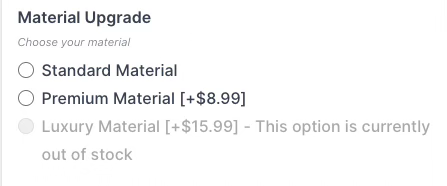
Message displayed when an option variant is out of stock. Appended to the option label and the option is disabled so it can't be selected.
Default: This option is currently out of stock
Live Preview
In the example below, the Luxury Material option is out of stock — the message is appended to its label and the option is greyed out:
Customize for:
- Brand voice alignment
- Multiple languages
- Specific messaging (e.g., "Temporarily unavailable — check back soon!")
How to Access
- Navigate to App Settings > Storefront Settings
- Open Language Settings
- Edit the strings you want to customize
- Click Save in the contextual save bar
Best Practices
- Keep messages concise and clear
- Use consistent tone with your brand
- Consider multilingual stores — customize for each language
- Keep out-of-stock messages helpful and positive