

Appearance
Image Switching
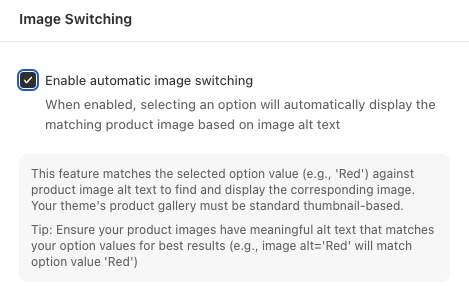
Automatically switch product gallery images when customers select options by matching to image alt text.
Overview
Image Switching links option selections to product gallery images. When a customer chooses an option whose value matches an image's alt text, the gallery automatically displays that image.
Theme Requirement
Your theme's product gallery must be standard thumbnail-based for image switching to work.
How It Works
- Set descriptive alt text on your product images that matches the option values you want them tied to (e.g.,
Red,Blue,Large) - When a customer selects an option value, the app looks for a gallery image whose alt text matches that value
- If a match is found, the gallery automatically displays that image
Setting Image Alt Text
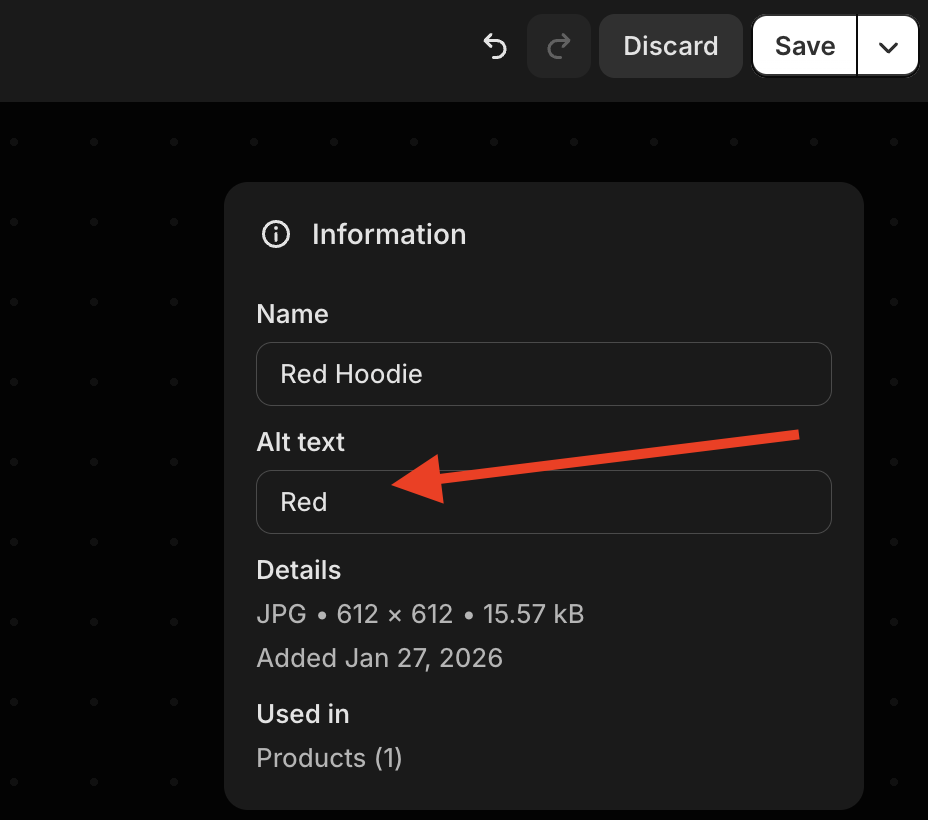
Edit the alt text on each product image so it matches the corresponding option value exactly. For example, an image of a red hoodie should have alt text Red to match the Red option value.
Alt Text Tips
- Match the option value exactly (case-insensitive)
- Keep alt text concise — just the option value works best
- Meaningful alt text also improves accessibility and SEO
How to Access
- Navigate to App Settings > Storefront Settings
- Open Image Switching
- Toggle Enable automatic image switching
- Click Save in the contextual save bar
Best Practices
- Ensure every option value that should switch images has a corresponding gallery image with matching alt text
- Test on the storefront after configuring — selecting each option value should jump the gallery to the right image
- Keep alt text consistent across all products that share option values