

Appearance
Price Display Settings
Configure how option prices are displayed to customers.
Overview
Price Display Settings control how the cost of options is shown alongside the base product price on your storefront.
Settings are split into two independent choices:
- A primary price mode — how the option total affects the displayed product price (Add to Price or Append to Price).
- An optional Display below options breakdown — a detailed list of priced selections shown beneath the options.
Use them together
"Display below options" is no longer one of three mutually exclusive modes. It's an optional breakdown you can turn on alongside either primary mode, so the option total can appear beside the product price and as a breakdown below the options at the same time.
Primary Price Mode
Choose one mode for how the priced option total affects the displayed product price.
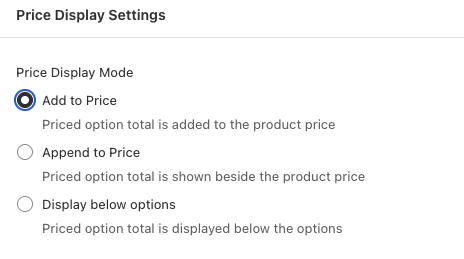
| Mode | How It Works |
|---|---|
| Add to Price | Priced option total is added into the product price as a single number |
| Append to Price | Priced option total is shown beside the product price |
Add to Price (Default)
The option total is summed with the base product price into a single number.

- Cleanest display
- Single total price shown
- Customers see final price immediately
Append to Price
The base product price is shown first, with the option total appended in parentheses.

- Shows base + extras separately
- Customers see what options cost
- Good for transparency
Display Below Options
Turn on Display below options to show a detailed breakdown beneath the options — listing the base price, each priced selection, and the total.
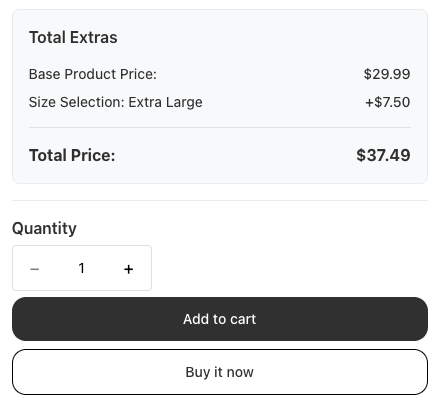
- Most detailed breakdown
- Lists each selection with price
- Best for complex configurations
- Works alongside either primary mode, or on its own
Combining Settings
Because the primary mode and the breakdown are independent, you can mix them to suit your store:
| Primary mode | Display below options | Result |
|---|---|---|
| Add to Price | Off | Single combined price only |
| Append to Price | Off | Base price with the extra shown beside it |
| Add to Price | On | Combined price, plus a full breakdown below the options |
| Append to Price | On | Extra shown beside the price and a full breakdown below the options |
Existing configurations
Your current settings are preserved. If you previously used the standalone "Display below options" mode, it continues to work — the base price stays visible while the breakdown block is shown below.
How to Access
- Navigate to App Settings > Storefront Settings
- Open Price Display Settings
- Select a primary mode (Add to Price or Append to Price)
- Optionally enable Display below options for a breakdown
- Click Save in the contextual save bar
Changes apply immediately to your storefront, and the Live Preview reflects your selections.
Shopify POS
In Shopify POS, the breakdown is always shown and the main price is left unchanged, regardless of the primary mode you choose. These settings affect your online storefront.
Best Practices
- Use Add to Price for simple products where a single total is clearest
- Enable Display below options for complex configurations with multiple add-ons
- Combine Append to Price with the breakdown when you want both a quick figure and full transparency
- Test which format your customers find clearest