

Appearance
Checkout UI Extension (Shopify Plus)
The Checkout UI Extension brings your loyalty program directly into the Shopify checkout page, enabling your customers to claim and apply rewards as they complete their purchase. This creates a seamless experience that drives reward redemption and increases customer satisfaction.
Shopify Plus Required The Checkout UI Extension is exclusively available for stores on the Shopify Plus plan. Checkout UI Extensions are a Plus-exclusive feature provided by Shopify. If you're not on Shopify Plus, you can still use the Customer Account UI Extension and Theme App Extensions.
What Customers Can Do at Checkout
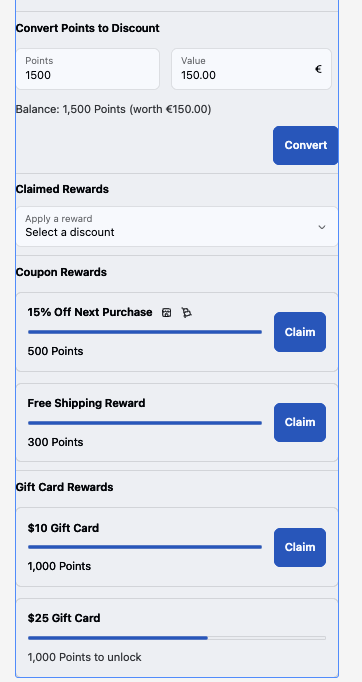
When the Checkout UI Extension is enabled, your customers can perform the following actions directly on the checkout page:
View Available Rewards Customers see a list of rewards they can apply to the current checkout, including coupon discounts, gift cards, and dynamic discounts.
Claim Rewards Using Points If a customer has enough points, they can claim a reward directly during checkout without leaving the page.
Apply Claimed Rewards as Discounts After claiming, the reward is automatically applied to the checkout as a discount. The order total updates in real-time.
Remove Applied Rewards Customers can remove a previously applied reward if they change their mind, restoring the original order total.
View Points Balance & Potential Earnings Customers can see their current points balance and how many points they will earn from completing this order.
Setting Up the Checkout UI Extension
Step 1: Enable the Extension
- Open Keystone Loyalty Rewards from your Shopify admin panel.
- Go to Storefront in the left sidebar.
- Find the Checkout UI Extension section and toggle it On.
Step 2: Configure Extension Placement
- Go to your Shopify Admin → Settings → Checkout.
- Click Customize checkout to open the Checkout Editor.
- In the editor, locate the Keystone Loyalty Rewards extension in the app blocks list.
- Drag and drop the extension to your preferred checkout block location.
- Click Save to publish your changes.
Step 3: Customize Appearance
You can customize how the extension looks and behaves from the app admin:
| Setting | Description |
|---|---|
| Colors | Customize the background, text, accent, and button colors to match your store's checkout theme. |
| Fonts | Choose fonts that align with your brand's typography. |
| Feature Toggles | Enable or disable specific features: claim rewards, show points balance, show potential earnings. |
| Reward Display | Choose whether to show all rewards or only rewards applicable to the current checkout. |
| Custom Labels | Set custom text for buttons, headings, and messages (e.g., change "Points" to "Stars" or "Coins"). |
How It Works for Customers
Claiming a Reward at Checkout
- During checkout, the customer sees the Keystone Loyalty Rewards section showing their current points balance and available rewards.
- The customer selects a reward they want to use (e.g., "10% off your order - 500 points").
- They click Claim & Apply. The reward is claimed, points are deducted, and the discount is applied to the order total immediately.
- The customer can see the updated order total with the discount reflected in the order summary.
- If they change their mind, they can click Remove to undo the reward - their points will be refunded.
Supported Reward Types
| Reward Type | How It Works at Checkout |
|---|---|
| Coupon Rewards | Applied as a discount code to the checkout. Supports percentage off, fixed amount off, and free shipping. |
| Gift Cards | Applied as gift card credit to the checkout total. |
| Dynamic Discount Codes | Customers choose how many points to spend for a custom discount amount (e.g., 100 points = $1 off, up to a merchant-defined maximum). |
Note: Custom rewards (rewards requiring form submissions, like personalized gifts or experiences) cannot be claimed at checkout. Customers should claim these from the Customer Accounts Extension or Theme App Blocks before proceeding to checkout.
Error Handling
The extension handles common issues gracefully to ensure a smooth checkout experience:
| Scenario | What Happens |
|---|---|
| Insufficient points | The Claim button is disabled for rewards that require more points than the customer has. A message shows how many more points they need. |
| Expired reward | Expired rewards are not displayed in the available rewards list. |
| Already used reward | Rewards that have already been redeemed are filtered out automatically. |
| Network error | A friendly error message is shown with a Retry button. The checkout process is not disrupted. |
| Claim fails | An error message explains the issue (e.g., "This reward is no longer available"). Points are not deducted if the claim fails. |
Frequently Asked Questions
Can customers claim rewards and also use a manual discount code?
This depends on your Shopify checkout settings and the discount combination rules you've configured. Shopify Plus allows you to set up discount combination rules that determine whether multiple discounts can be stacked.
Do customers need to be logged in?
Yes, customers must be logged in to their Shopify account to see and use the checkout extension. If a customer is not logged in, the extension will not appear.
Can I choose which rewards are available at checkout?
Yes, you can configure which reward types are eligible for checkout redemption in the app admin under Storefront settings. You can also set the extension to only show rewards that are applicable to the items in the customer's cart.
Will the extension slow down my checkout?
No. The extension is optimized for performance and loads customer data asynchronously. It does not block or delay the checkout rendering process.
What if a customer applies a reward but then abandons checkout?
The claimed reward remains in the customer's account and can be used during a future checkout. If the reward was specifically generated for this checkout, it will expire according to your configured reward expiration rules.