

Appearance
Customer Account UI Extension
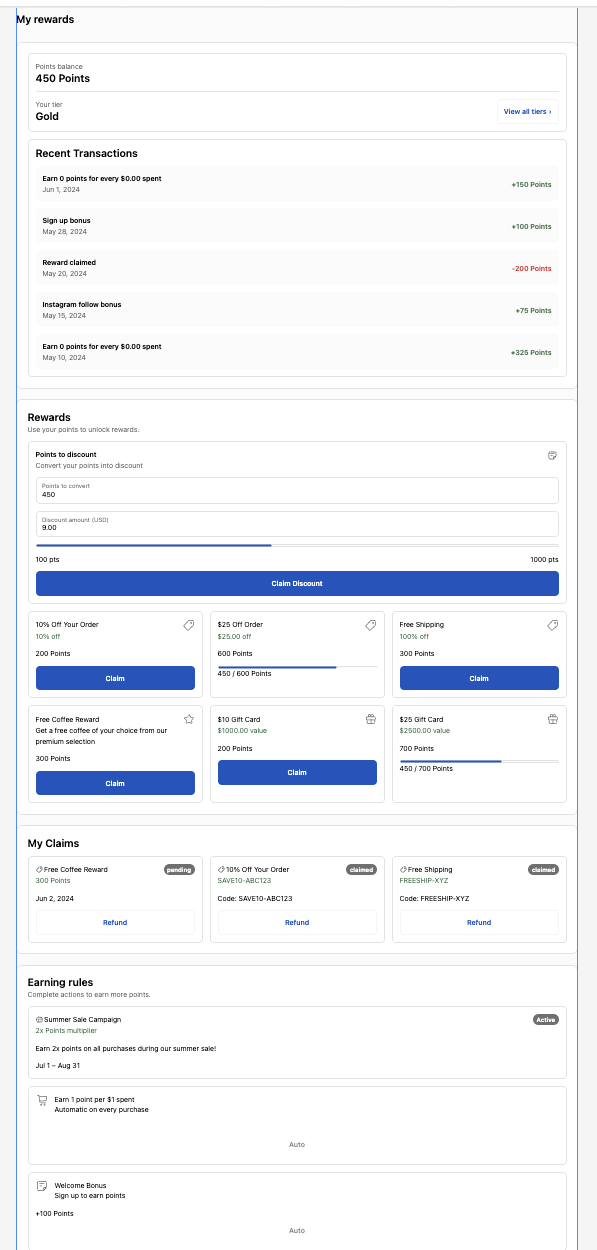
The Customer Account UI Extension integrates a full-featured loyalty dashboard directly into your customers' Shopify account page. It serves as the central hub where customers can view their points, browse and claim rewards, track their tier status, manage referrals, and see their complete loyalty activity history.
The complete loyalty experience in one place. This extension provides the same functionality as the storefront widget, but embedded natively within the Shopify customer accounts page for a seamless, integrated experience.
Dashboard Sections
The Customer Account UI Extension is organized into several sections, each providing specific loyalty features. You can enable or disable each section independently.
1. Dashboard Header (Account Data)
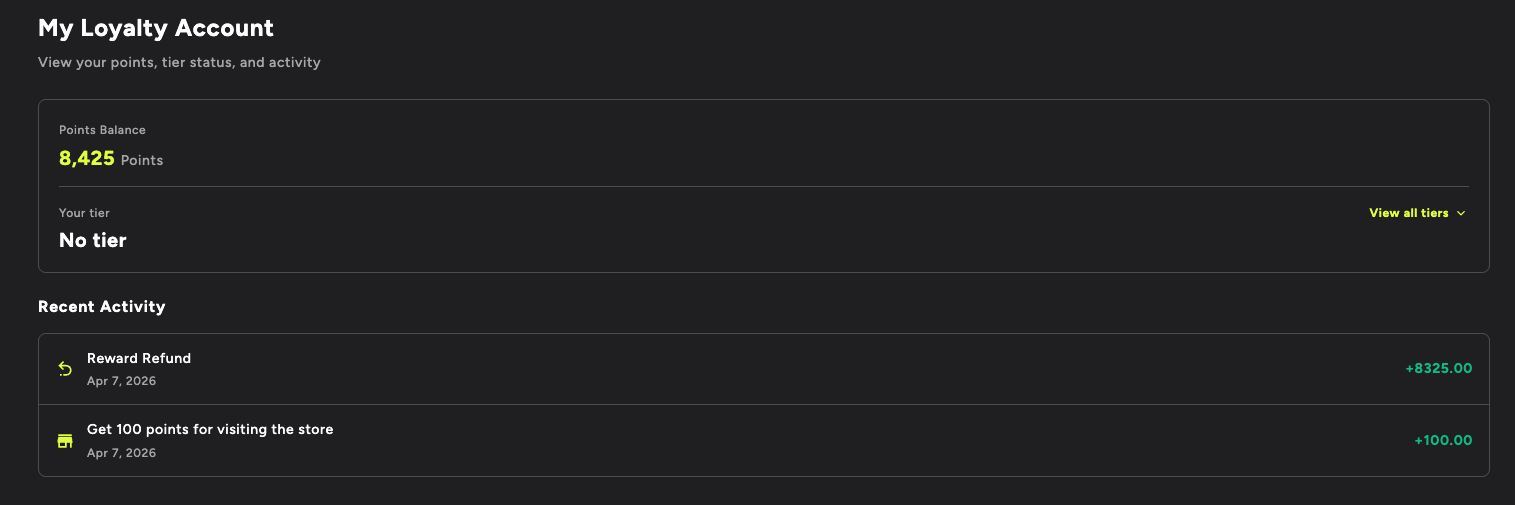
Displayed at the top of the loyalty page, the header gives customers an at-a-glance summary of their loyalty status.
What It Shows:
- Points Balance - Current available points with your custom points label (e.g., "Stars", "Coins")
- Tier Status - Current VIP tier name with a visual progress indicator showing how close they are to the next tier
- Recent Activity - Latest loyalty actions (reward refunds, store visits, purchases)
2. Rewards Section
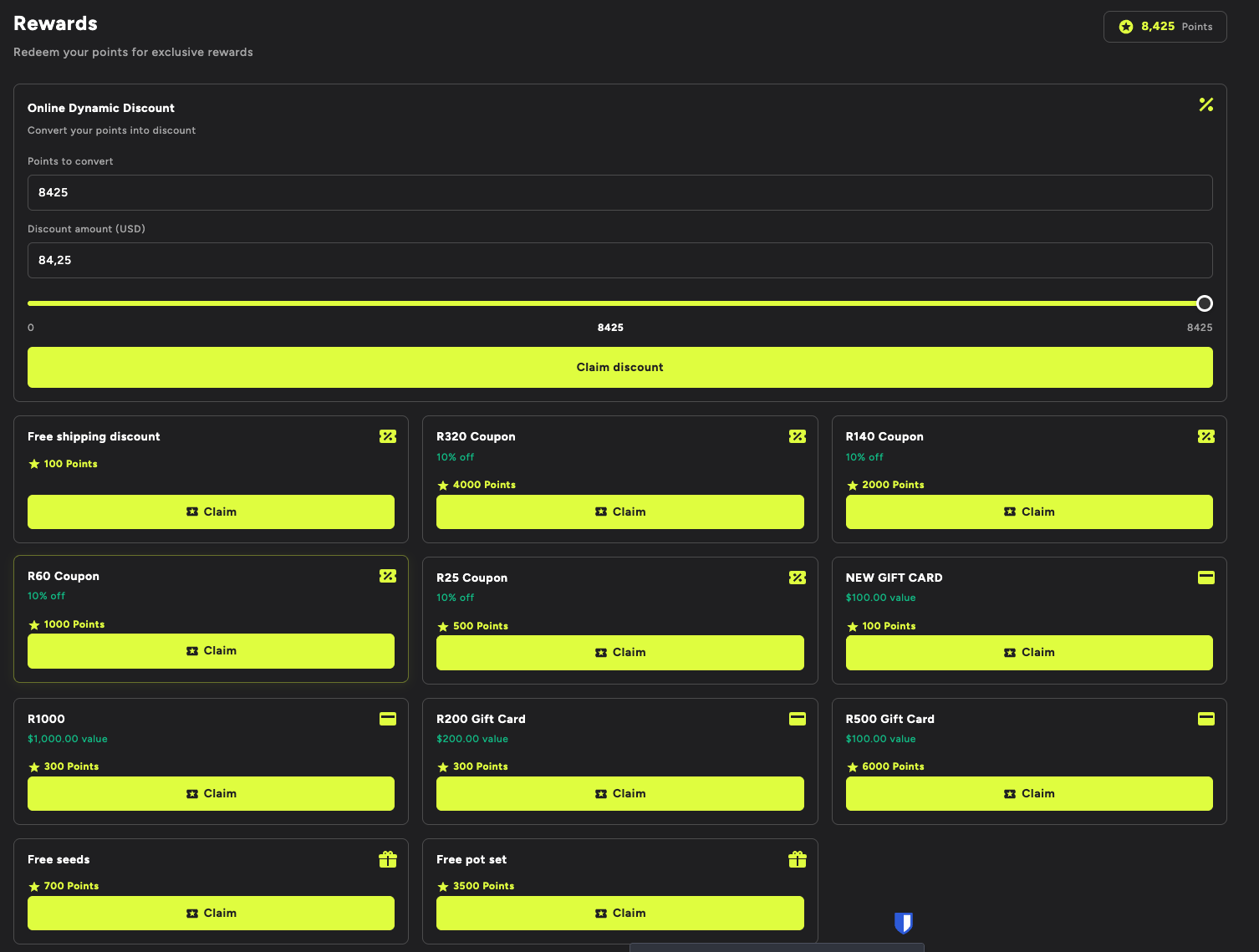
Displays all available rewards that customers can claim using their points.
What It Shows:
- Online Dynamic Discount - A slider allowing customers to choose how many points to convert into a discount amount (e.g., 8,425 points = $84.25 discount)
- Coupon Rewards - Percentage discounts like "R320 Coupon - 10% off - 4000 Points"
- Gift Cards - Digital gift cards like "NEW GIFT CARD - $100.00 value - 100 Points"
- Custom Rewards - Special items like "Free seeds - 700 Points" or "Free pot set - 3500 Points"
Each reward card shows an icon indicating the reward type (scissors for coupons, card for gift cards, gift box for custom rewards), along with a yellow Claim button.
3. Claims History
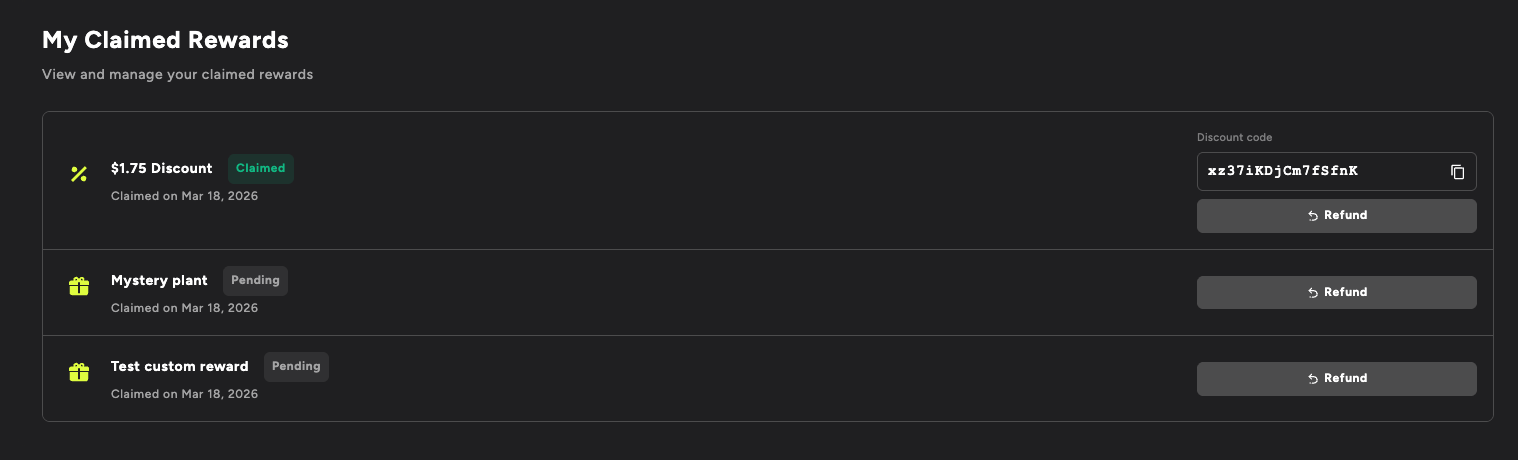
A complete record of all rewards the customer has claimed.
What It Shows:
- Reward Name - e.g., "$1.75 Discount"
- Status Badge - Green "Claimed" badge for active rewards, gray "Pending" for processing
- Claim Date - When the reward was claimed (e.g., "Claimed on Mar 18, 2026")
- Discount Code - The generated code (e.g.,
xz37iKDjCm7fS$fnK) with a copy button - Refund Button - Yellow "Refund" button to return unused rewards and recover points
4. Earning Rules Section
Shows all the ways customers can earn points, motivating them to engage with your store.
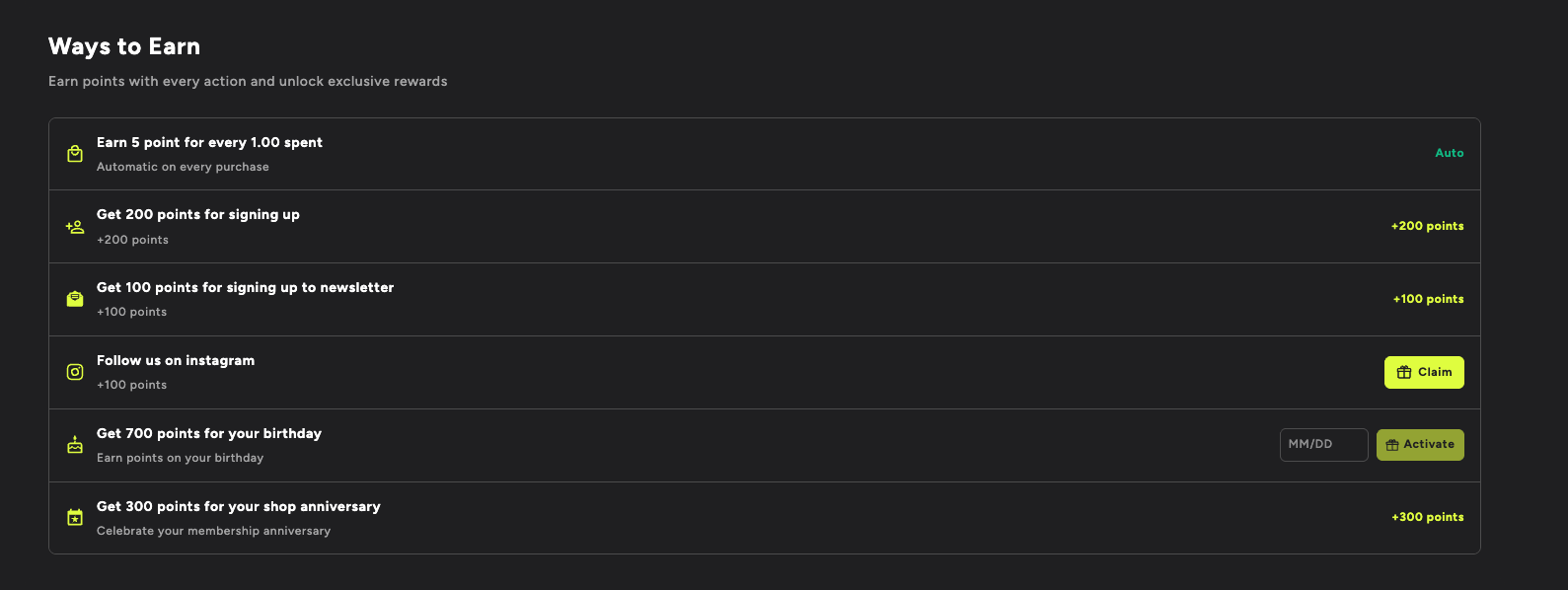
What It Shows:
- Purchase-based Rule - "Earn 5 points for every 1.00 spent" (Auto - automatic on every purchase)
- Account Signup - "Get 200 points for signing up" (+200 points)
- Newsletter Signup - "Get 100 points for signing up to newsletter" (+100 points)
- Social Media Actions - "Follow us on Instagram" (+100 points, with a green "Claim" button)
- Birthday Rewards - "Get 700 points for your birthday" (with MM/DD input field and "Activate" button)
- Anniversary Rewards - "Get 300 points for your shop anniversary" (+300 points)
Each rule has an icon, description, and either an automatic label, a points earned label, or a call-to-action button.
5. Referral Section
Everything customers need to refer friends and earn referral rewards.
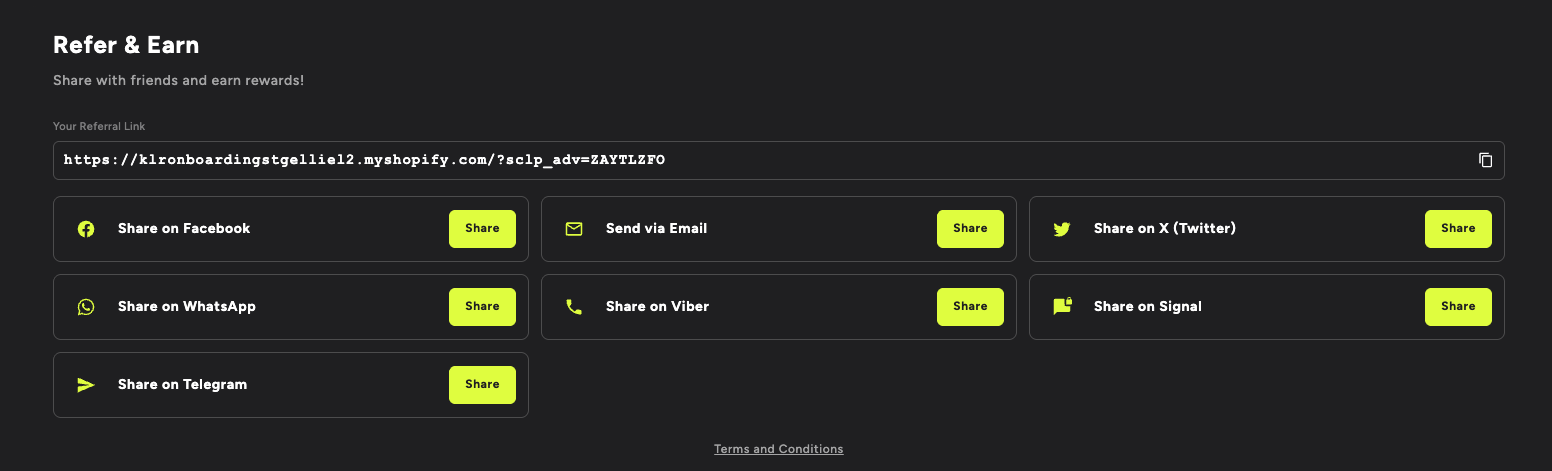
What It Shows:
- Unique Referral Link - The customer's personalized link displayed in a text field with a copy button
- Social Sharing Grid - Share buttons for Facebook, Email, X (Twitter), WhatsApp, Viber, Signal, and Telegram
- Terms and Conditions - Link to referral program terms
6. Referral Claim (for Referred Customers)
When a new customer arrives via a referral link, they see a claim modal.
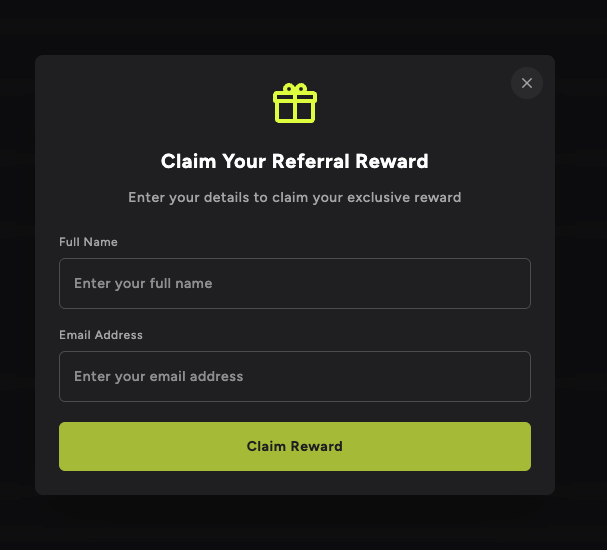
What It Shows:
- Gift icon and heading - "Claim Your Referral Reward"
- Description - "Enter your details to claim your exclusive reward"
- Form Fields - Full Name and Email Address inputs
- Claim Button - Yellow "Claim Reward" button
- Close Button - X button to dismiss the modal
Setting Up the Customer Account UI Extension
Step 1: Enable the Extension
- Open Keystone Loyalty Rewards from your Shopify admin panel.
- Navigate to Storefront in the left sidebar.
- Find the Customer Account UI Extension section and toggle it On.
Step 2: Configure Which Sections to Display
Choose which sections of the loyalty dashboard your customers will see:
| Section | Default | Description |
|---|---|---|
| Dashboard Header | Enabled | Points balance, tier status, and customer greeting |
| Rewards | Enabled | Browse and claim available rewards |
| Earning Rules | Enabled | Ways to earn points |
| Claims History | Enabled | Past claimed rewards and their status |
| Referrals | Enabled | Referral link, sharing tools, and stats |
| Birthday | Enabled (if active) | Birthday entry/update form |
Step 3: Customize Branding & Appearance
Make the extension look like a natural part of your store:
| Category | Options |
|---|---|
| Branding | Custom colors (background, text, accent, buttons), fonts, and typography |
| Layout | Choose which components to display and their arrangement |
| Labels & Messaging | Customize all text labels, headings, button text, and messages |
| Points Terminology | Rename "Points" to anything (e.g., "Stars", "Coins", "Credits", "Gems") |
| Tier Display | Customize tier names, icons, and progress visualization |
| Reward Cards | Configure reward card appearance and styling |
| Referral Settings | Customize referral messaging, sharing platforms, display options |
| Empty States | Custom messages when there are no rewards, no claims, or no activity |
How It Works for Customers
Claiming a Reward
- The customer logs into their account and navigates to the Loyalty page.
- In the Rewards section, they browse available rewards and see the points cost for each one.
- They click Claim on their desired reward. For custom rewards, they fill out any required form fields first.
- A confirmation message appears with the discount code or reward details. Points are deducted immediately.
- The claimed reward appears in their Claims History with a "Ready to Use" status.
Refunding a Claimed Reward
- In the Claims History section, the customer finds the unused reward they want to refund.
- They click Refund next to the reward.
- The reward is cancelled, and their points are restored to their balance.
Note: Only unused rewards can be refunded. Rewards that have already been applied to an order cannot be refunded through the loyalty dashboard.
Sharing a Referral
- The customer scrolls to the Referrals section of their loyalty dashboard.
- They see their unique referral link and the rewards both they and their friend will earn.
- They can Copy the link, share via social media buttons, or Send an email invitation directly.
- When a friend signs up using their link, both the referrer and the friend receive their respective rewards.
Handling Customer States
| Customer State | What They See |
|---|---|
| Enrolled customer with points | Full loyalty dashboard with all enabled sections |
| Enrolled customer, 0 points | Dashboard with earning rules highlighted and rewards showing points needed |
| Not enrolled | Enrollment prompt or hidden extension based on configuration |
| Not logged in | Extension is not visible - customers must be logged in |
Error Handling
| Scenario | Behavior |
|---|---|
| API call fails | Loading skeleton shown, then friendly error message with Retry button |
| Slow connection | Loading states for each section as data is fetched asynchronously |
| Reward claim fails | Error message explains reason. Points not deducted. Can retry. |
| No rewards available | Custom empty state message shown |
Frequently Asked Questions
Where does the extension appear in the customer account?
The extension appears as a dedicated "Loyalty" page within Shopify's customer account section. It uses Shopify's Customer Account UI Extensions API to render as a full-page experience.
Can I customize the order of sections?
Yes, you can rearrange the order of sections (Rewards, Earning Rules, Claims, Referrals) in the app admin under the Layout Configuration settings.
Does the extension update in real-time?
Yes. When a customer claims a reward or earns points, the dashboard updates immediately without requiring a page refresh.
Can customers navigate directly to a specific section?
Yes, the extension supports deep linking. You can create links that take customers directly to specific sections like rewards or referrals.
Is the extension mobile-friendly?
Absolutely. The Customer Account UI Extension is fully responsive and optimized for mobile, tablet, and desktop viewing.